Outer – Canon imageCLASS D1650 All-in-One Monochrome Laser Printer User Manual
Page 331
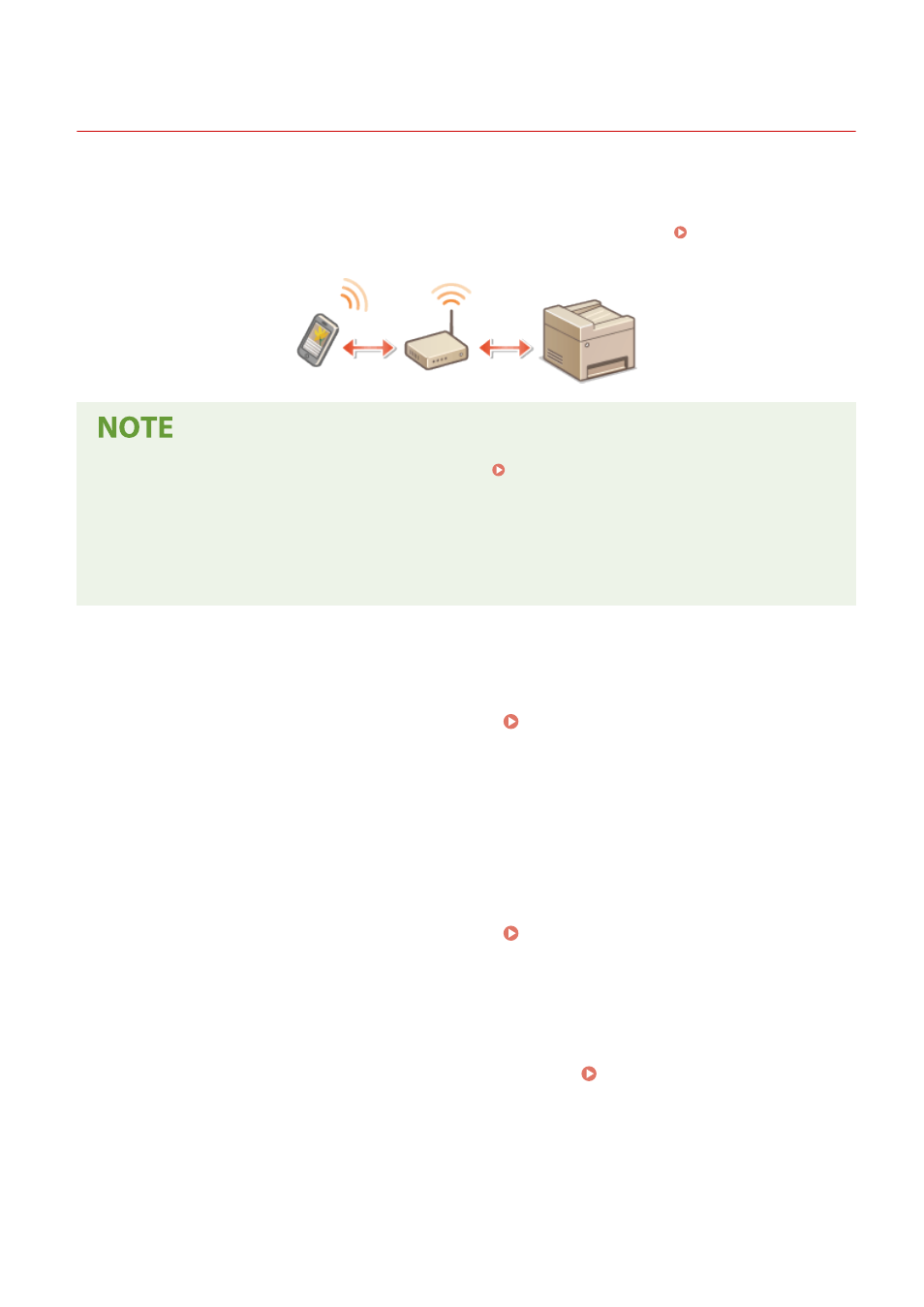
Connecting via a Wireless LAN Router (LAN Connection)
3JX3-069
If a wireless LAN router is connected to the network connected to the machine, you can establish a communication
with a mobile device via the wireless LAN router in the same way for a computer. For information about how to
connect a mobile device to your wireless LAN router, see the instruction manuals for your networking devices or
contact your manufacturer. Connect the machine to a router via the wired or wireless LAN. Setting Up the Network
●
To perform the procedures below, use the IPv4 address. Setting IPv4 Address(P. 33)
●
Select <LAN Connection> and proceed with the procedure, if the <Direct Connection> screen is displayed
after <Mobile Portal> is selected in the procedure below.
●
For information about the operating systems compatible with Canon PRINT Business, the detailed setting
procedure, and the operating procedure, please see the application's Help or the Canon website (http://
www.canon.com/gomp/).
◼
Connecting Manually
1
Select <Mobile Portal> in the Home screen. Home Screen(P. 122)
2
Connect from the mobile device to the IP address that appears on the screen.
◼
Connecting Using a QR Code
1
Select <Mobile Portal> in the Home screen. Home Screen(P. 122)
2
Select <QR Code>.
3
Launch Canon PRINT Business on the mobile device. Utilizing the Machine through
Applications(P. 329)
4
Read the QR code displayed on the screen using the mobile device.
Linking with Mobile Devices
323