Scanning using an application – Canon i-SENSYS MF244dw User Manual
Page 143
Scanning Using an Application
1525-02L
You can scan documents from applications such as image-processing or word-
processing software. The scanned image is directly loaded in the application, allowing
you to edit or process the image immediately. The following procedure varies
depending on the application.
●
The application must be compatible with TWAIN or WIA
*
. For more information, see the instruction manual
for your application.
*
TWAIN is a standard for connecting image input devices, such as scanners, with computers. WIA is a function that is an
integrated standard in Windows.
1
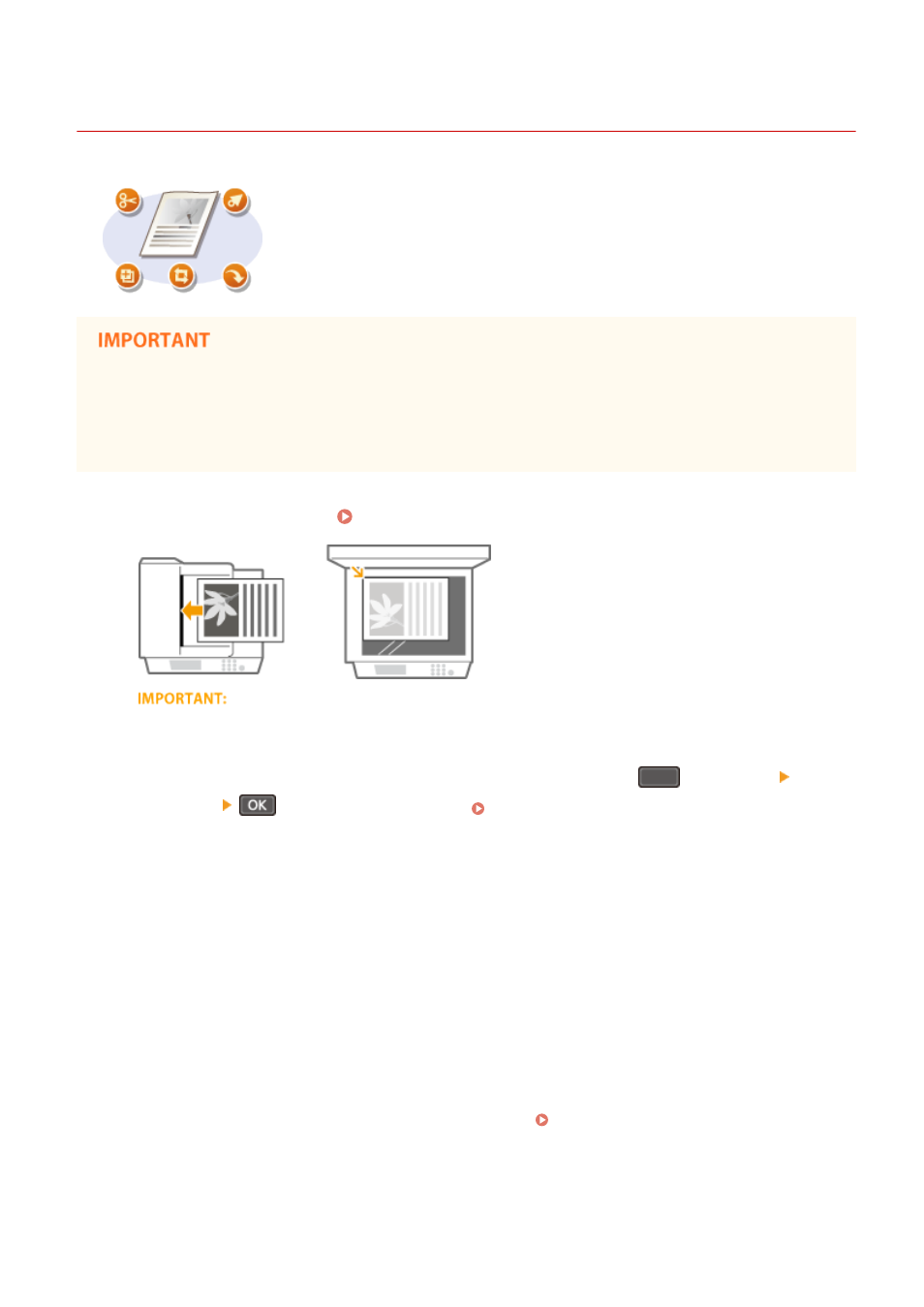
Place the document(s). Placing Documents(P. 38)
●
The second or subsequent documents may not be scanned, or an error message may be displayed
depending on the application. In such a case, place and scan one document at a time.
●
When <Auto Online for Remote Scan> is set to <Off>, you must press
(COPY/SCAN) <Remote
Scanner>
to bring the machine online. Auto Online for Remote Scan(P. 333)
2
From the application, select the start scan command.
●
The procedure for selecting the start scan command varies depending on the application. For more
information, see the instruction manual for your application.
3
Select the scanner driver for the machine.
●
Select ScanGear MF or WIA.
4
Configure the scan settings as necessary.
●
For more information about ScanGear MF scan settings, see Configuring Scan Settings in ScanGear
MF(P. 139)
5
Click [Scan].
Using the Machine as a Scanner
137