P74) – Panasonic Lumix DMC-G85M User Manual
Page 74
3. Recording Modes
74
Taking Pictures that match the Scene being
recorded
(Scene Guide Mode)
Recording Mode:
If you select a scene to suit the subject and recording conditions with reference to the
example images, the camera will set optimal exposure, color, and focus, allowing you to
record in a manner appropriate to the scene.
1
Set the mode dial to [
].
2
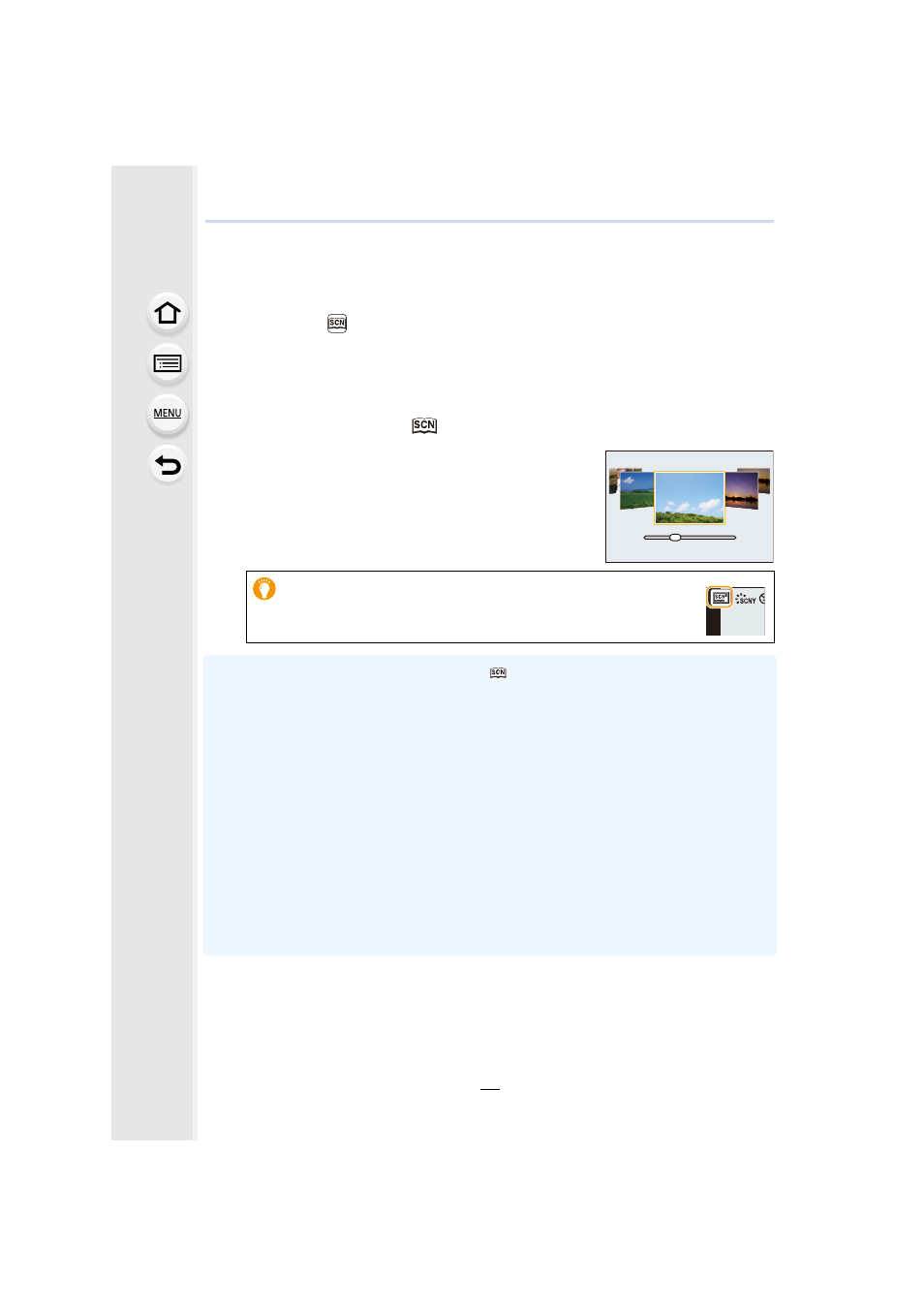
Press 2/1 to select the scene.
•
The scene can also be selected by dragging an example
image or the slide bar.
3
Press [MENU/SET].
•
To change the Scene Guide Mode, select the [
] tab on the menu screen, select [Scene
Switch], and then press [MENU/SET]. You can return to step
2
on
.
•
The following items cannot be set in Scene Guide Mode because the camera automatically
adjusts them to the optimal setting.
–
Items other than the picture quality adjustment in [Photo Style]
–
[Sensitivity]
–
[Filter Settings]
–
[Metering Mode]
–
[Highlight Shadow]
–
[HDR]
–
[Multi Exp.]
–
[Digital Zoom]
•
Although White Balance is fixed to [AWB] for certain types of scene, you can fine tune the
White Balance
or use White Balance bracketing
by pressing the cursor button 1
on the recording screen.
•
Depending on the scene, the recording screen may seem as if frames are missed.
•
It is also possible to display the selection screen by touching the
Recording Mode icon in recording screen.
8