Selecting channel strips, 3, selecting channel strips, 3 selecting channel strips – Native Instruments MASCHINE MK3 Groove Production Studio (Black) User Manual
Page 653
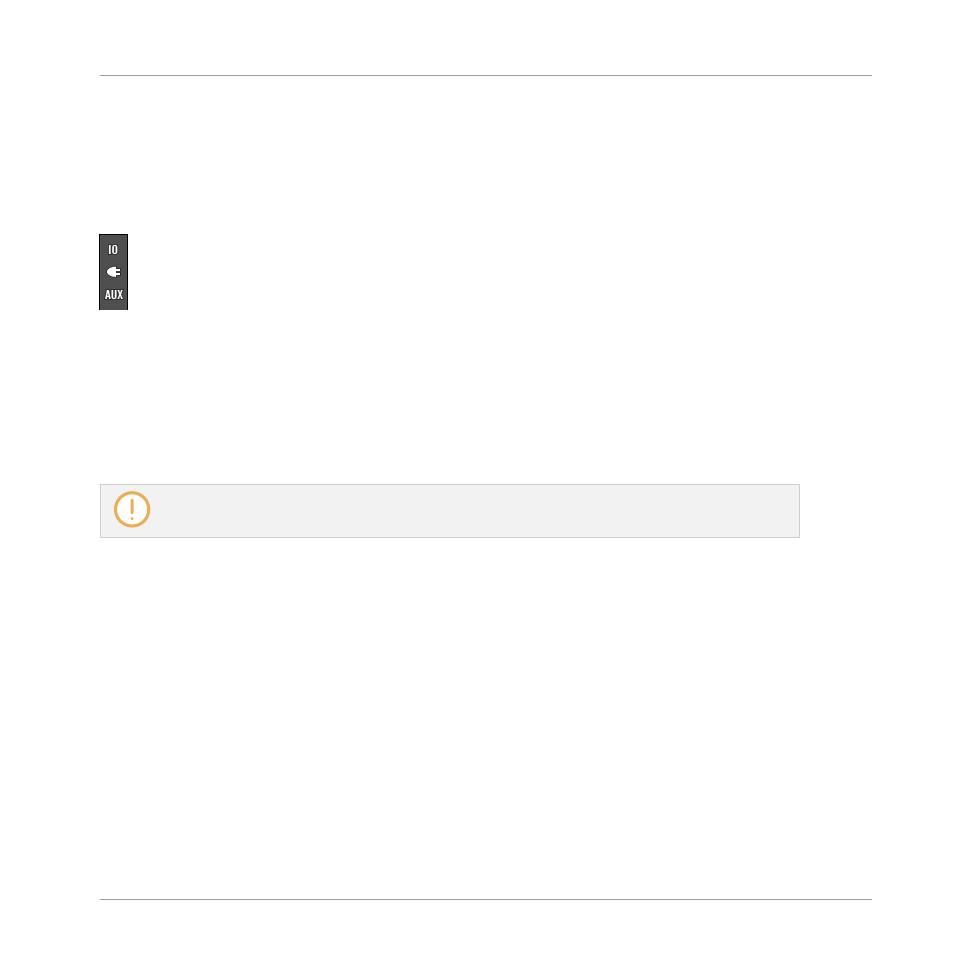
Showing/Hiding Particular Sections of the Strips
Both when displaying all Group channels or all Sound channels of a particular Group, the Mix-
er allows you to select which sections you want to show or hide in the strips currently dis-
played. This is done via the three buttons on the left of the Mixer, under the arrow expanding
the Mixer:
Choosing what to display in the channels.
From top to bottom:
▪
IO button: Click it to show/hide the input and output settings (both MIDI and audio) in the
channel strips.
▪
Plug-in icon: Click it to show/hide the Plug-in Lists in the channel strips.
▪
AUX button: Click it to show/hide the auxiliary output settings in the channel strips.
The settings for the main audio output are always visible, even if the
IO
button is disabled.
For a detailed description of the settings available in the channel strips, see section
Adjusting Settings in the Channel Strips
13.2.3 Selecting Channel Strips
Since the Mix view is just another way of displaying and accessing MASCHINE channels, se-
lection and focus work similarly in the Mixer as in the Arrange view:
▪
To set the focus to a particular channel (Sound or Group), click the background of its head-
er in the top two rows of the Mixer (upper row for Groups and the Master/Cue, lower row for
Sounds, if visible) or use the usual commands on your controller (see section
). The header of the focused channel is highlighted.
▪
Setting the focus to a particular channel strip in the Mixer will automatically set the focus
to the corresponding Sound, Group, or the Master in Arrange view, and inversely.
Controlling Your Mix
The Mixer
MASCHINE - Manual - 653