Using ideas view, Scene overview, The maschine mk3 hardware. for more details see – Native Instruments MASCHINE MK3 Groove Production Studio (Black) User Manual
Page 811: 2, using ideas view, 2 using ideas view, 1 scene overview
3.
At the bottom left corner of the left display you see the current
RETRIGGER
value (
Off
by
default).
4.
Turn Knob 1 to select
On
.
→
The next time you select a new Section or loop range, it will start from the beginning.
16.2 Using Ideas View
The Ideas view allows you to experiment with your musical ideas without being tied to a time-
line or any kind of arrangement. Here you can create Patterns for each Group and combine
them into a Scene.
In Ideas view, MASCHINE provides a perfect overview of all your Scenes, Patterns and Groups.
Here you can create a Scene by selecting a Pattern for each Group, duplicate your Scenes,
clear a Scene and more importantly trigger your Scenes to so you can hear how they sound
when played in a particular order.
Pressing a pad in Scene mode will trigger a Scene and in turn trigger all the assigned Patterns.
In addition to creating ideas, Scene mode is fantastic for improvisation during a performance.
16.2.1 Scene Overview
In the software, all Scenes can be managed from the Ideas view:
►
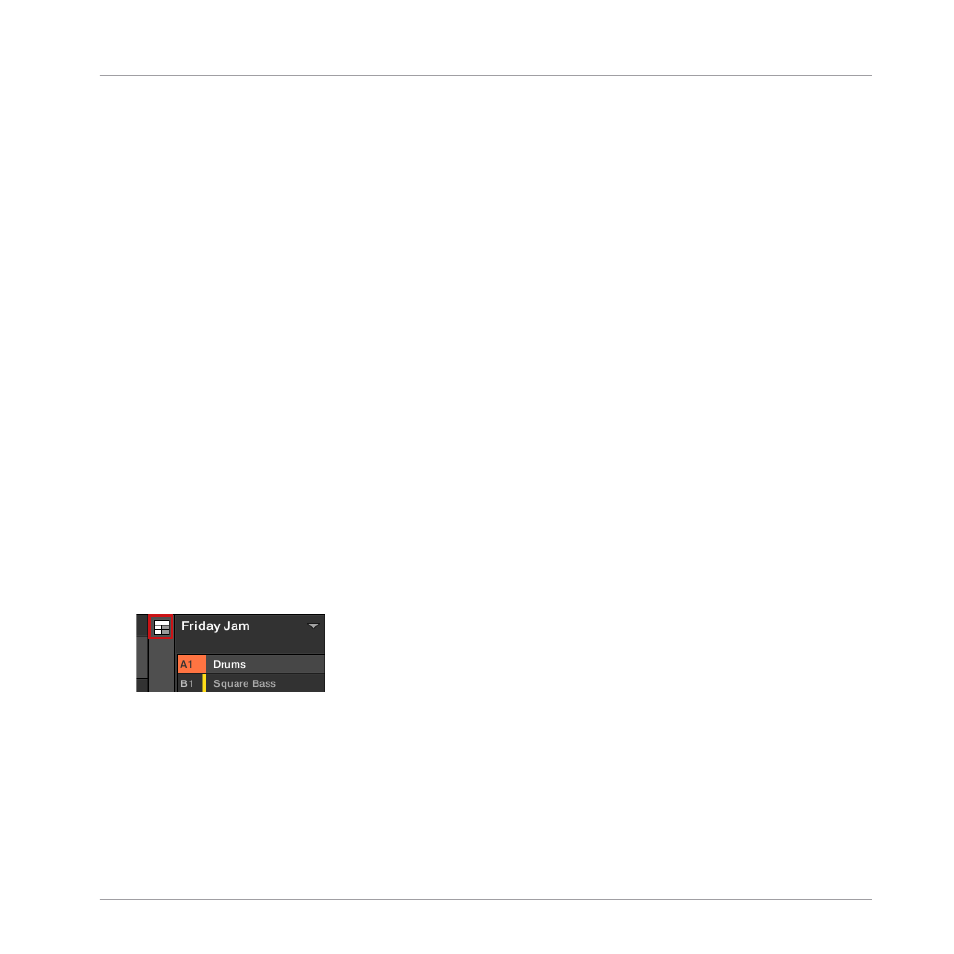
To open Ideas view, click the Arranger View button on the left of the Arranger.
→
When the button is unlit Ideas view is active, when the button is lit Song view is active.
Working with the Arranger
Using Ideas View
MASCHINE - Manual - 811