Adjusting the length of a section – Native Instruments MASCHINE MK3 Groove Production Studio (Black) User Manual
Page 840
→
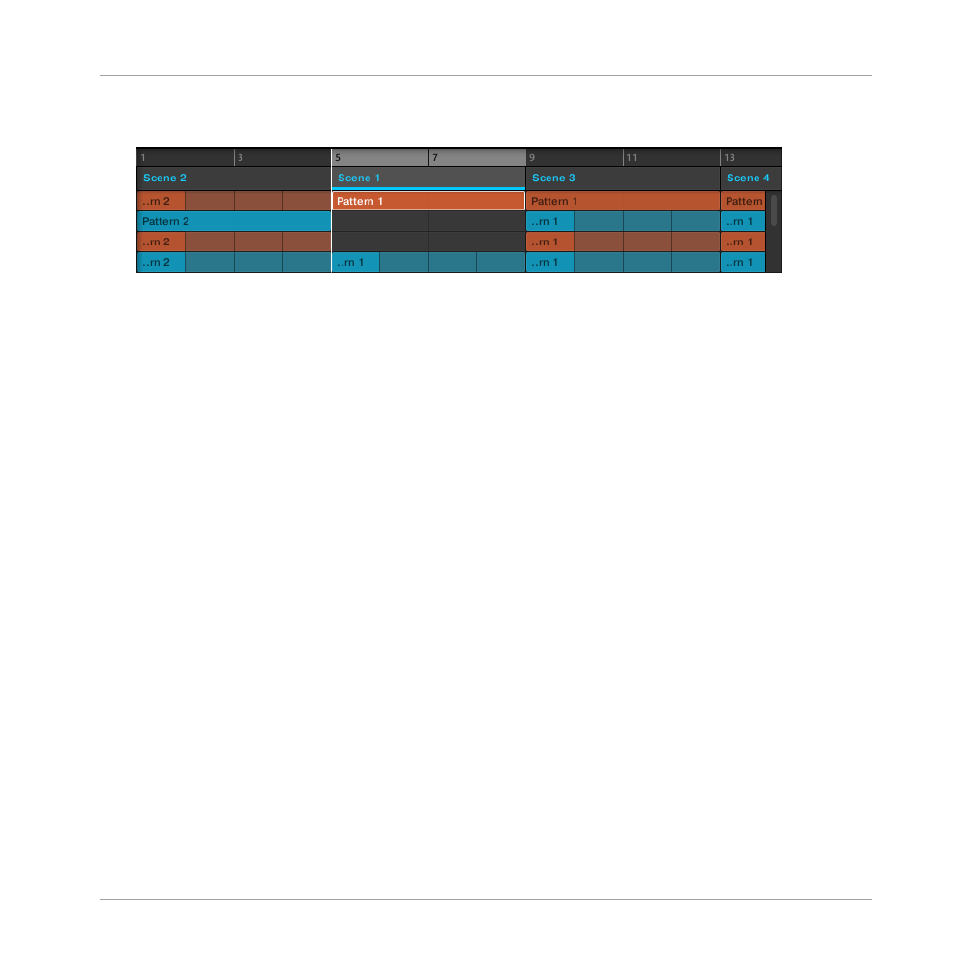
The Section takes its new place. On your controller in Section mode, you can now select
this Section via the pad corresponding to its new location.
Moving a Section using the Controller
To move a Section using your controller:
1.
Press
ARRANGER
.
2.
Press
SHIFT
+ Button 2 to enter Song view.
3.
Press and hold
SCENE
(
Section
) to enter Section mode (you can pin it by pressing But-
ton 1).
4.
If required, press Button 7 and 8 to select the Section bank containing the Section you
want to move.
5.
Press the pad of the Section you want to move.
6.
Turn Knob 1 (
POSITION
) to move the selected Section to another position in your ar-
rangement.
→
The Section takes its new place. In Section mode you can now select this Section via the
pad corresponding to its new location.
16.3.6 Adjusting the Length of a Section
Here are a few rules on how Sections, Scenes and Patterns are displayed within the Arranger:
By default the length of a Section is automatically set to the longest Pattern used within the
referenced Scene (Auto Length), unless the length of the Section is manually set to a specific
bar range (Manual Length).
Working with the Arranger
Using Song View
MASCHINE - Manual - 840