Native Instruments MASCHINE MK3 Groove Production Studio (Black) User Manual
Page 703
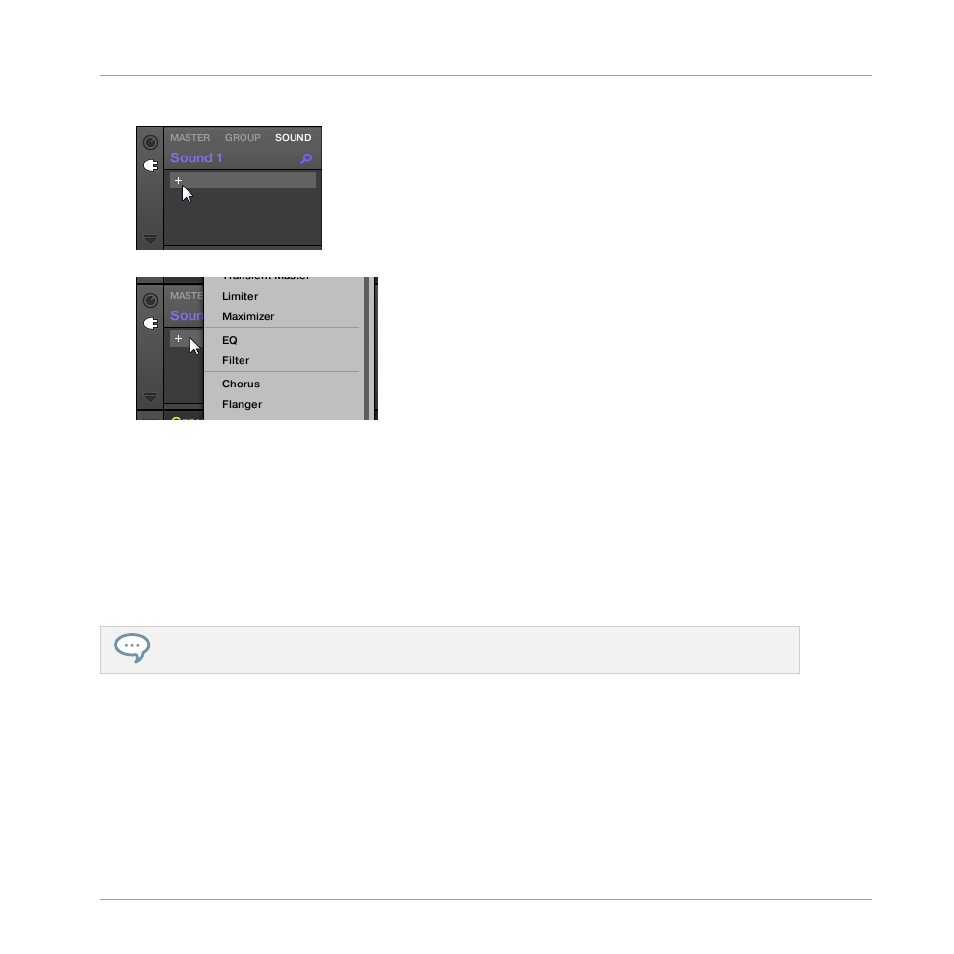
3.
Click the “
+
” icon at the top of the Plug-in List.
The Plug-in menu opens and shows a list of all available Instrument and Effect Plug-ins.
4.
Click the desired effect in the list. If you have VST/AU effect plug-ins installed you may
also load them from the menu by selecting the
Native Instruments
(Native Instruments
products) or
External
(third-party products) submenu at the top of the list.
→
Upon selection the effect is loaded and its parameters are displayed in the Parameter
area. When you load an effect into the first Plug-in slot of a Sound, MASCHINE automati-
cally configures the Sound’s input to receive any signal(s) coming from other Sounds and
Groups in your Project and sends them through its own Plug-in slots — in other words,
you now have a send effect.
You could also load an effect preset from the Browser instead of using the Plug-in menu. For more
information on how to load effect presets, see
4.2, Searching and Loading Files from the Library
.
Now that the effect is loaded, we suggest that you rename the Sound slot to the Plug-in name:
this will be of great help when routing other signals to that send effect (see section
Step 2: Route Audio to the Send Effect
below). To rename the Sound slot:
1.
Double-click the name of the Sound slot in the Sound List.
The name becomes highlighted, ready to be edited.
2.
Type the name of the Plug-in, and press [Enter] on your computer keyboard to confirm.
Using Effects
Creating a Send Effect
MASCHINE - Manual - 703