Selecting a plug-in, Navigating parameter pages – Native Instruments MASCHINE MK3 Groove Production Studio (Black) User Manual
Page 98
2.
Click the desired button (
Input
,
Output
,
Groove
, or
Macro
) in the Channel Property selec-
tor to select that set of Channel properties.
→
The selected button is highlighted and the parameters of the selected Channel properties
appear in the Parameter area (the right and biggest part of the Control area).
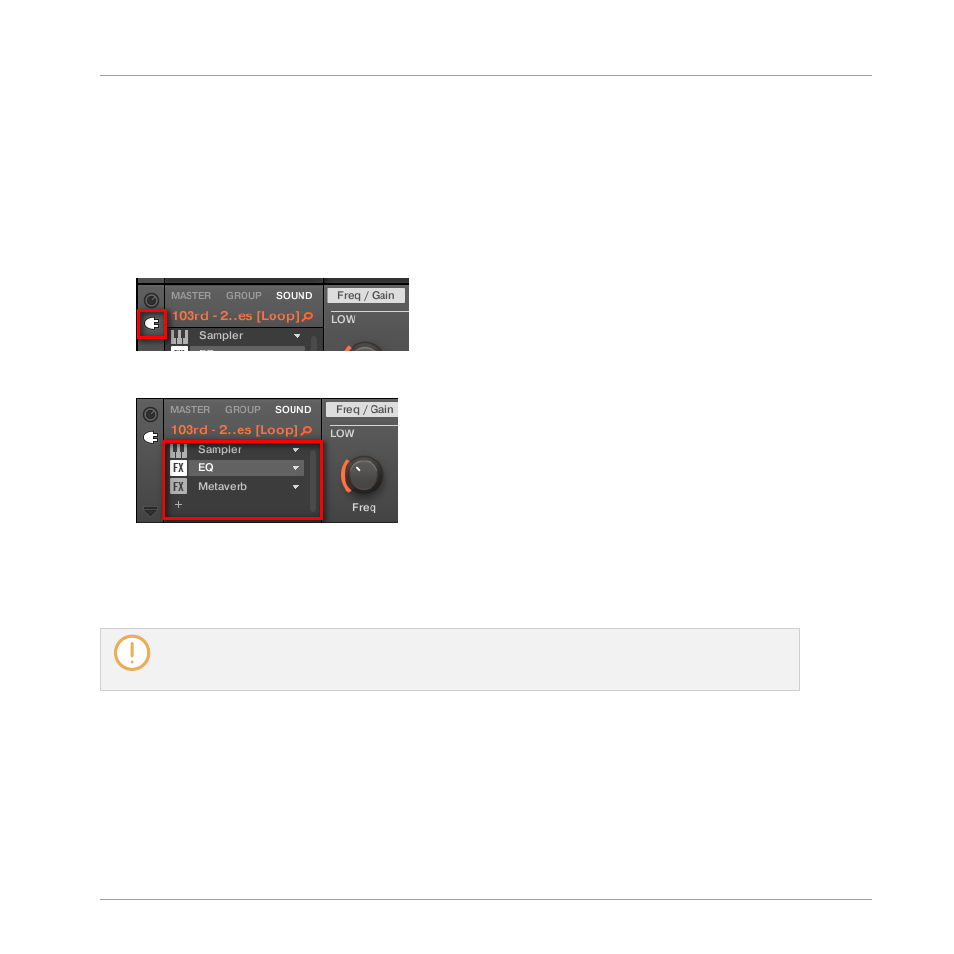
Selecting a Plug-in
1.
At the far left of the Control area, click the little Plug-in icon to display the Plug-ins:
The icon lights up. The Plug-in List appears in the left part of the Control area, showing a
stack of all Plug-ins loaded in the selected Sound, Group or the Master:
2.
Click the desired Plug-in slot in the Plug-in List to select that Plug-in.
→
The parameters of the selected Plug-in appear in the Parameter area (the right and biggest
part of the Control area).
If the Plug-in List only shows a “
+
” sign, it means that there are no Plug-ins loaded in this Sound,
Group or the Master. Clicking the “
+
” sign allows you to load a new Plug-in: see section
Loading, Removing, and Replacing a Plug-in
Navigating Parameter Pages
In some situations, the selected Plug-in or Channel properties provide more parameters than
the display(s) of your controller and the Parameter area in the software can show at once. Ex-
amples of this are the parameters for the Groups’ or Sounds’ Output properties and those for
the Sampler Plug-in. In these cases, the parameters are divided into several Parameter pages
that you can easily navigate with the hardware and software.
Basic Concepts
Common Operations
MASCHINE - Manual - 98