Dividing a file manually (divide), 4–recording – Teac DR-2D User Manual
Page 50
50
TASCAM DR-2d
4–Recording
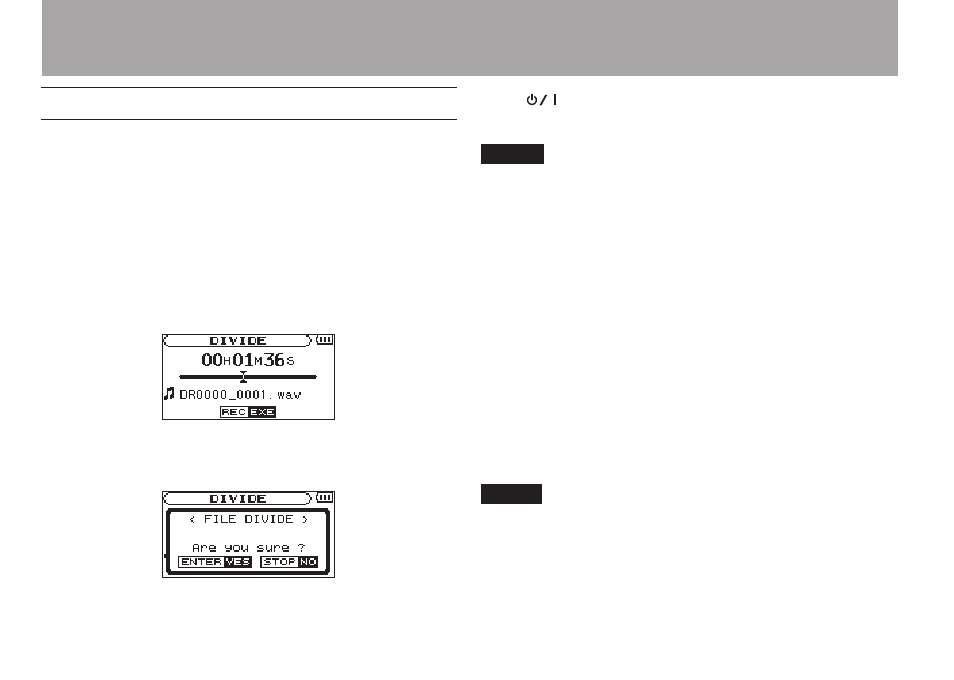
Dividing a file manually (DIVIDE)
You can split a recorded file into two files at any position you
like. This is convenient for splitting a continuous recording into
multiple files.
1 Use the  and ¯ keys or
BROWSE
screen to select
the file you want to divide.
2 Press the MENU key to open the
MENU
screen.
3 Use the wheel to select
DIVIDE
and press the ENTER/
MARK key.
4 Use the wheel to determine where the file will be divided,
and press the ENTER/MARK key.
5 Press the ENTER/MARK key to divide the file, or press
the
/HOME [ª] key to cancel the operation and
return to the
DIVIDE
screen.
NOTE
When the DIVIDE screen is open, you can press the PLAY/
•
PAUSE (
¥/π
) key and to set the divide position while
playing the track.
After dividing a file, two new files with ”_a” and ”_b”
•
added to the end of the original file name are created.
For example if the original filename is “DR-2d_0000.wav”
then the new files will be named “DR-2d_0000_a.wav”
(the recording before the division point) and “DR-2d_0000_
b.wav” (the recording after the division point).
MP3 files cannot be divided.
•
If the SD card has insufficient open space, division might
•
not be possible.
Division is not possible if the file name would become
•
more than 200 characters long.
Division is not possible if a file that already exists has the
•
same name as the name that would be given to a new file
created by division.
TIP
Add marks during recording at positions where you want to
divide a file.