Continuous scan, Apply color matching – Plustek Opticpro A320E Flatbed Scanner User Manual
Page 123
Scanner Buttons Guide
48
All Rights Reserved.
Tick the check box of
Auto Rotate
, the document image you scanned will be
automatically rotated and straightened.
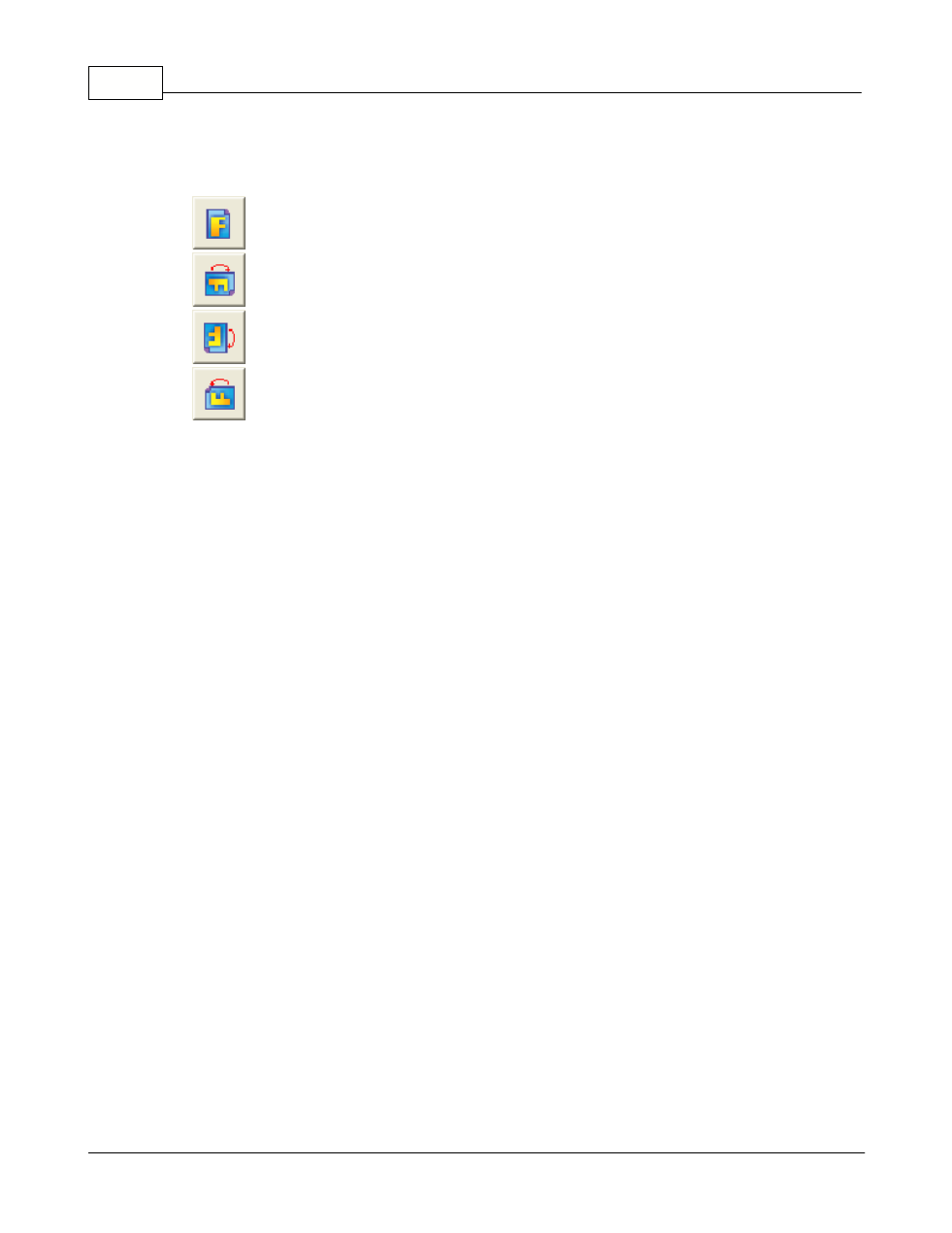
·
0°
-- Clicking this button keeps the image at its original orientation.
·
90º Right
-- Clicking this button turns the image clockwise by 90º.
·
180º
-- Clicking this button turns the image
by
180º.
·
90º Left
-- Clicking this button turns the image counterclockwise by 90º.
Continuous Scan
Check this option if you want to scan multiple pages successively to the same
destination. After the document is scanned, a dialog will pop up asking you if you
will put in more paper to continue scanning, or if you want to end the scan.
Apply Color Matching
Different types of devices reproduce different ranges of colors (or color gamut).
For example, you may have noticed the colors of the scanned image displayed on
your monitor and on the paper printed from your printer are different.
Color Matching allows you to get consistent color between input and output
devices (e.g., scanner, monitor, printer). It works by embedding a color profile to
your image files. Each different device displays colors according to this profile and
therefore results in consistent color appearance among all devices.
Ticking this check box if you want DocAction to apply the built-in color sRGB profile
to the scanned images. This feature is available only when
Color
is selected as
Scan Mode.