Plustek Opticpro A320E Flatbed Scanner User Manual
Page 133
Scanner Buttons Guide
58
All Rights Reserved.
2. When the Button Configuration window appears, click any button on the left pane.
Select OCR Utility from the drop-down list of Button Template. Enter your
personal memo in the Description field.
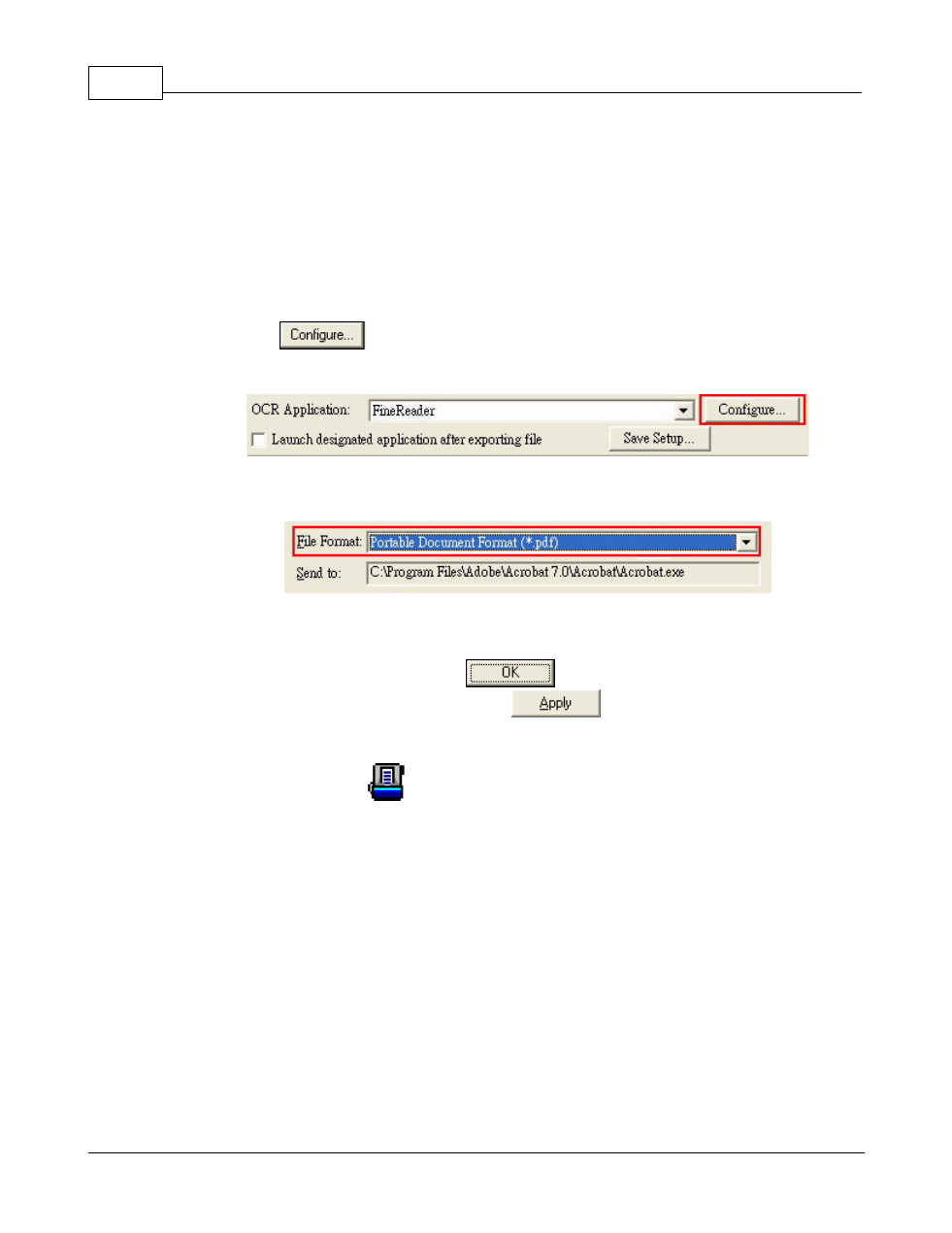
3. Select an OCR application to convert the scanned images into characters
readable by your word processor or text viewer.
The availability of the programs may vary depending on the scanner model you
purchase.
4. Clicking
opens a configuration window for the selected OCR
application.
5. Select Portable Document Format (*.pdf) from the drop-down list of File Format.
6. Check the scan settings and make any required changes.
7. After all settings are done, click
to accept the settings and exit this
Button Configuration window, or click
to save what you have
configured and continue adjusting other settings.
8. Right-click the icon
in the Windows system tray, and then choose
Execute
in the pop-up menu that opens.
9. Click the configured OCR button function in the pop-up menu.