Scan information, Need to click on the, Hand tool – Plustek Opticpro A320E Flatbed Scanner User Manual
Page 71
TWAIN Help
36
All rights are reserved.
The magnifying glass only affects the view of the prescanned
image in the preview area and does not affect the scanning process
or the final scanned image.
In other words, zooming in on an image will not make the scanned
image larger. Adjusting the size of an image must be done by
scaling it in an image-editing application. Make sure to scan the
image at a sufficiently high resolution when planning to enlarge it, so
there are enough pixels to maintain image integrity after the scaling
process.
2.3.3
Hand Tool
Clicking on the hand tool button changes the cursor to a hand tool
,
and you may use your mouse pointer to resize or move the scan area
within the
.
Purpose
Mouse Cursor
Shape
How to ...
To move the
image crop
Four-
headed
Arrow
Place the mouse pointer in the current
crop. Hold down the mouse and move the
selected frame to the desired position.
To adjust the
scan area
Two-headed
Arrow
Place the mouse pointer at the edge of
any side of the frame. Drag the cursor
inward or outward to reduce or expand the
frame.
2.4
Scan Information
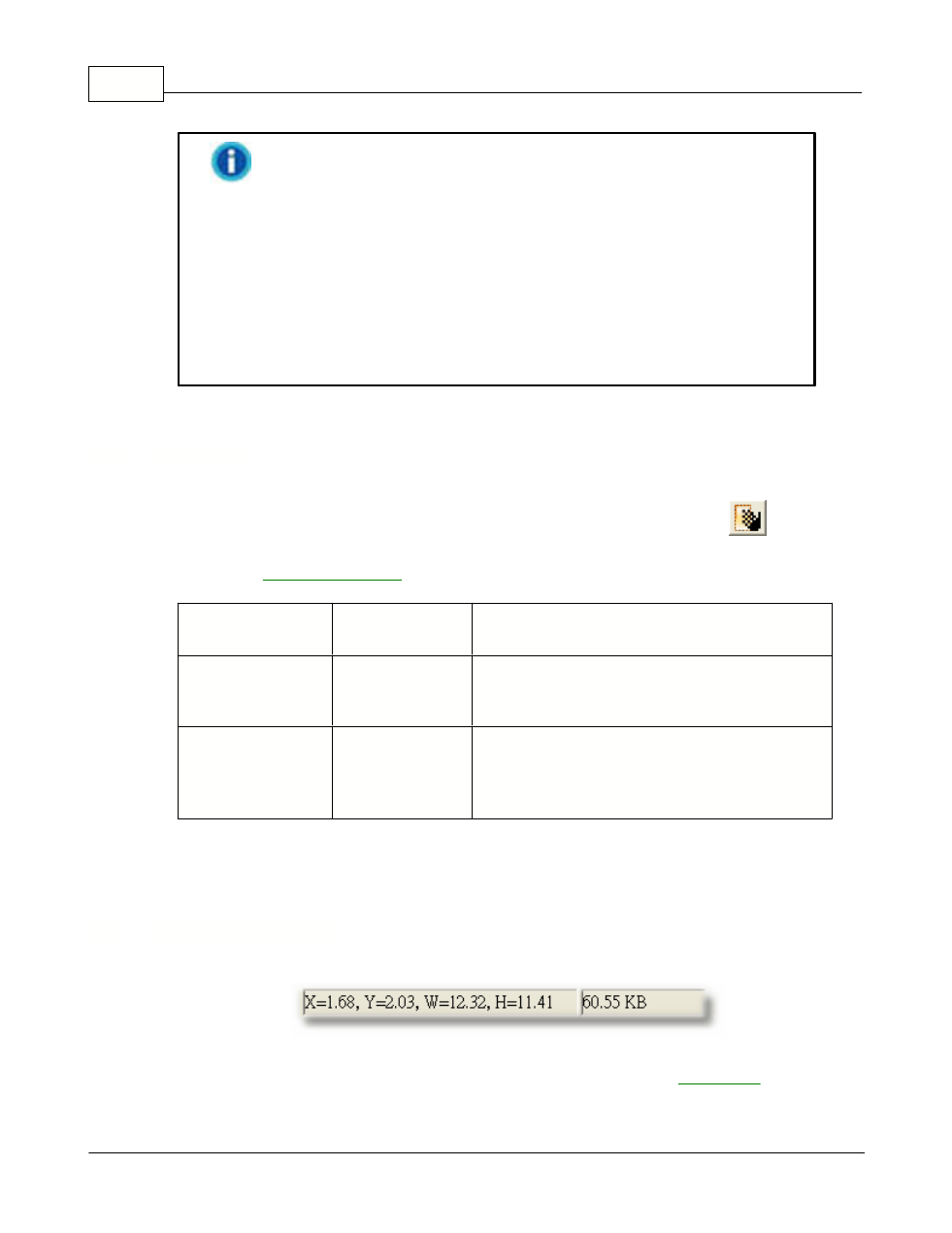
This area contains the following information of the preview image:
·
Scan Area Coordinates (X, Y)
border in
terms of X and Y coordinates.
·
Scan Area Dimension (W, H)
: Shows the exact width and height of the