Hapter, Iv. t, Roubleshooting – Plustek Opticpro A320E Flatbed Scanner User Manual
Page 30: Scanner connection, Canner, Onnection
25
C
HAPTER
IV. T
ROUBLESHOOTING
If you encounter problems with your scanner, please review the installation and
scanning instructions contained in this guide.
Before you ask for customer service or repair, please refer to the information in
this chapter and consult our FAQ (Frequently Asked Questions) in which you can find
useful self troubleshooting information. From the Windows
START
menu, point to
All
Programs
>
Your Scanner Model Name
, and then click
FAQ
.
(For Windows 8.1 users:
Point your mouse cursor to the upper or lower right corner of your screen to open the
Charm
bar. Click on the
Start
charm, then click on the downwards arrow button in the
lower left corner of the screen. The
Apps
screen will be shown. Move your cursor to
the right edge of the screen to scroll right until you find
Your scanner model name
,
and then click on
FAQ
.)
S
CANNER
C
ONNECTION
The first step to take when troubleshooting connection problems with your
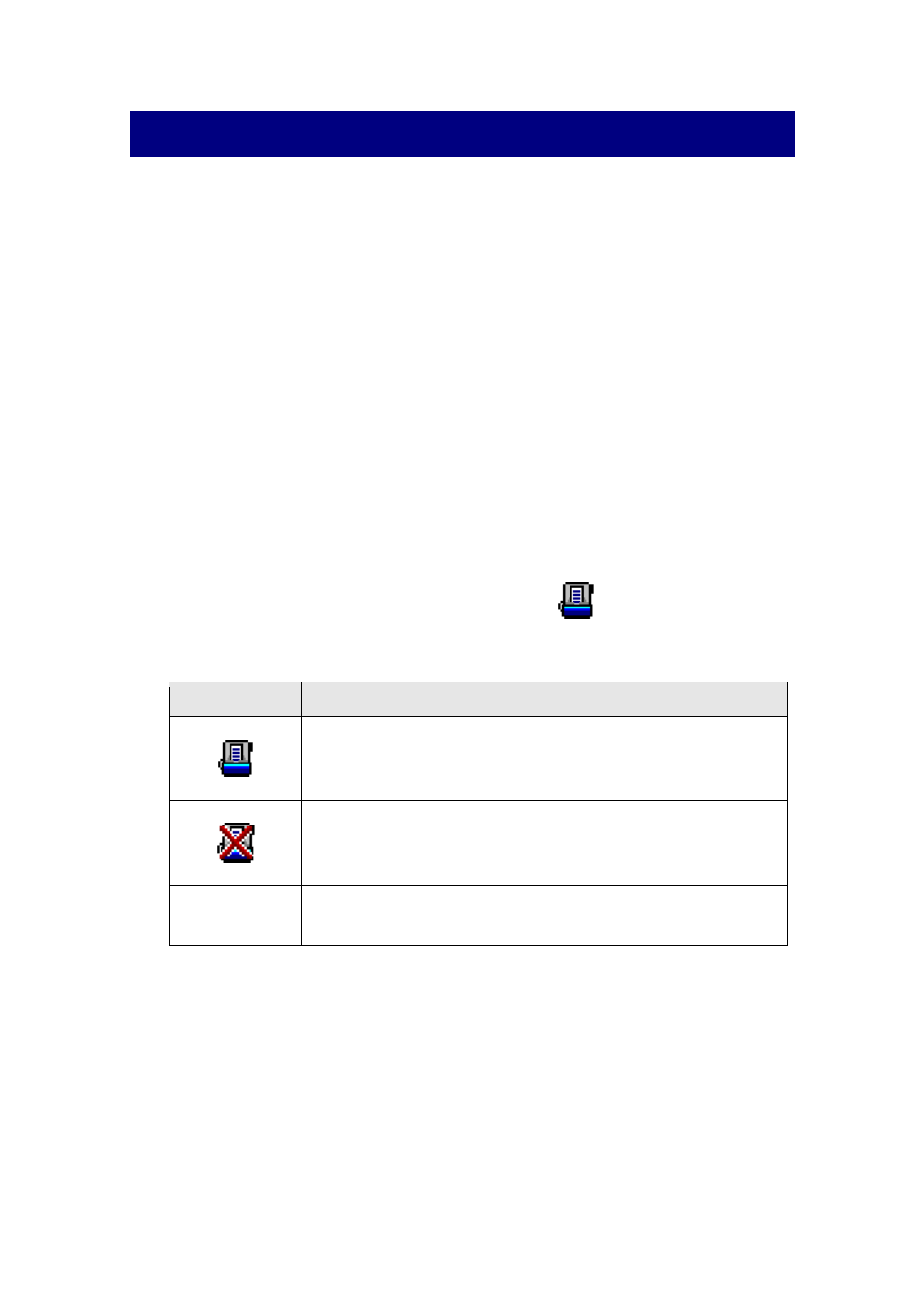
scanner is to check all physical connections. The icon
, located on the Windows
system tray, indicates if the scanner software is properly launched and the scanner and
computer are communicating with each other.
Appearance
Status
The program has been successfully launched and the
scanner is connected with the computer, ready to scan
images.
The scanner is not connected with the computer. Or, the
scanner power is not switched on. Or, the scanner is in
standby mode.
No Display
You have chosen to terminate the program, no matter the
scanner is connected or disconnected with the computer.