Placing documents, Using the flatbed, Scanning documents – Plustek Opticpro A320E Flatbed Scanner User Manual
Page 159
14
P
LACING
D
OCUMENTS
U
U
s
s
i
i
n
n
g
g
t
t
h
h
e
e
F
F
l
l
a
a
t
t
b
b
e
e
d
d
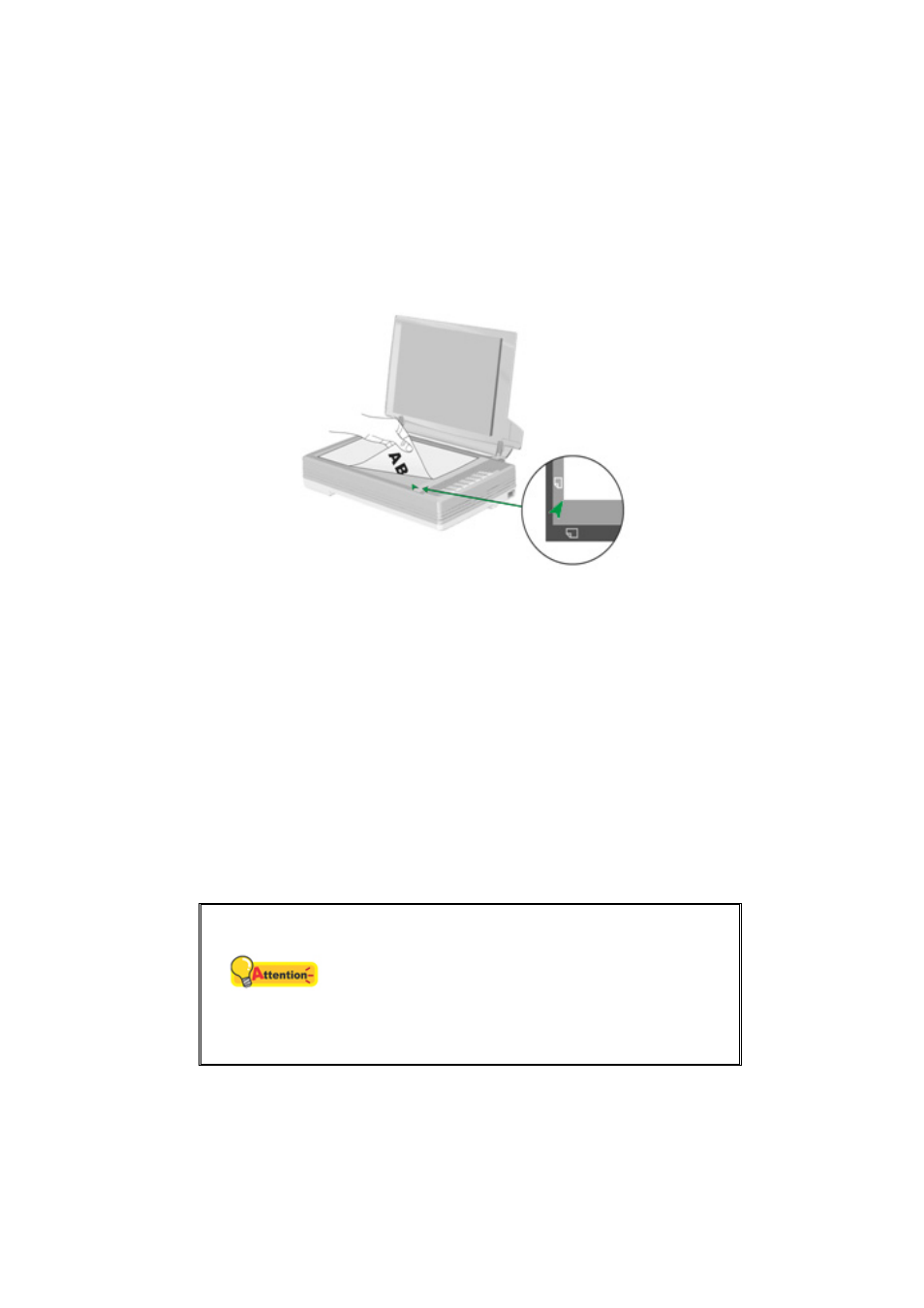
1. Open the scanner's document cover.
2. Place the document onto the scanner glass headfirst and face-down. Align the
top left corner of the document with the arrow on the reference mark.
3. Gently close the document cover.
S
CANNING
D
OCUMENTS
There are 3 different ways to operate the scanner:
1. By scanning from the scan buttons on the scanner.
2. By scanning from MacAction's Execute menu on the screen.
3. By scanning from the icon in the left side of the MacAction window.
The MacAction software is automatically installed to your system along with the
scanner driver.
Attention
Before you start scanning, check the following:
Your scanner has been unlocked and the
power of both your computer and scanner is
turned on.
Paper is appropriately placed on the
scanner flatbed glass.
S
S
c
c
a
a
n
n
n
n
i
i
n
n
g
g
f
f
r
r
o
o
m
m
t
t
h
h
e
e
S
S
c
c
a
a
n
n
n
n
e
e
r
r
’
’
s
s
P
P
a
a
n
n
e
e
l
l
o
o
r
r
O
O
n
n
-
-
s
s
c
c
r
r
e
e
e
e
n
n
M
M
a
a
c
c
A
A
c
c
t
t
i
i
o
o
n
n
'
'
s
s
E
E
x
x
e
e
c
c
u
u
t
t
e
e
M
M
e
e
n
n
u
u
The settings for each button on the scanner's panel are configured through
MacAction. MacAction offers you quick access to the most frequently-used scanning