Plustek Opticpro A320E Flatbed Scanner User Manual
Page 50
The TWAIN Interface
15
All rights are reserved.
If the current settings don't meet your needs, click the
Configure
button to
open a dialog box where you may adjust settings as desired.
On the upper part of the Page Settings dialog box are two viewers. The left
viewer shows the original image. The effects for settings you change in this
window appear on the right viewer immediately.
Results of rotating and flipping will only appear in the scan
result, but not be shown on the prescanned image in the
.
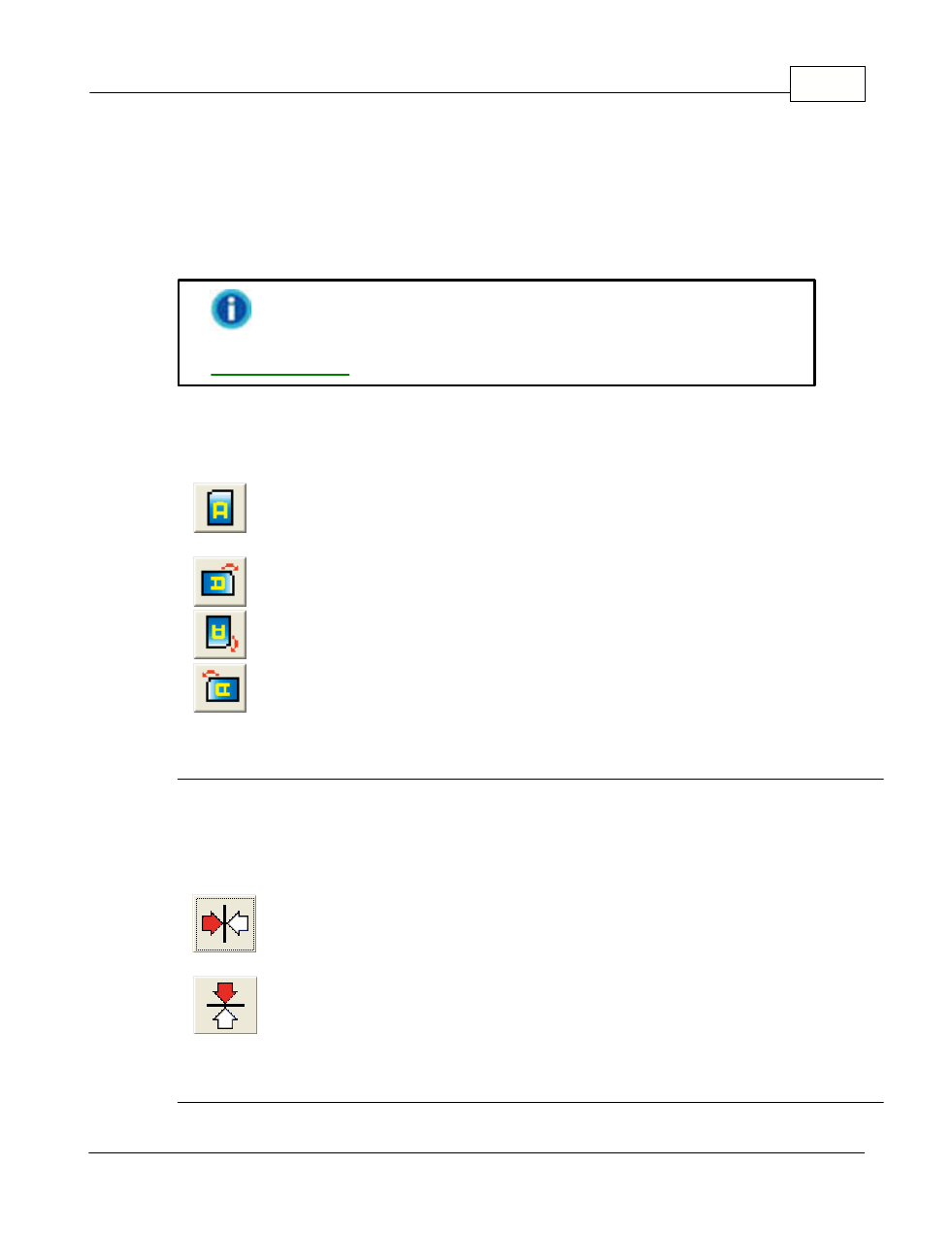
Rotate
When you click
Rotate
from the menu box on the left, the available
options are immediately shown on the right:
·
No Rotation
-- Clicking this button resets the image to its original
orientation.
·
90º Right
-- Clicking this button turns the image clockwise by 90º.
·
180º
-- Clicking this button turns the image by 180º.
·
90º Left
-- Clicking this button turns the image counterclockwise
by 90º.
Flip
When you click
Flip
from the menu box on the left, the available options
are immediately shown on the right:
·
Flip Horizontally
-- Each click on this button will flip your image around
the central vertical axis to create a mirror image.
·
Flip Vertically
-- Each click on this button will flip your image around
the central horizontal axis to create a mirror image.