Display the color picker, Display only web-safe colors, View color swatches instead of the color spectrum – Adobe Illustrator CC 2015 User Manual
Page 154: Select colors using the color picker
149
Color
Last updated 6/5/2015
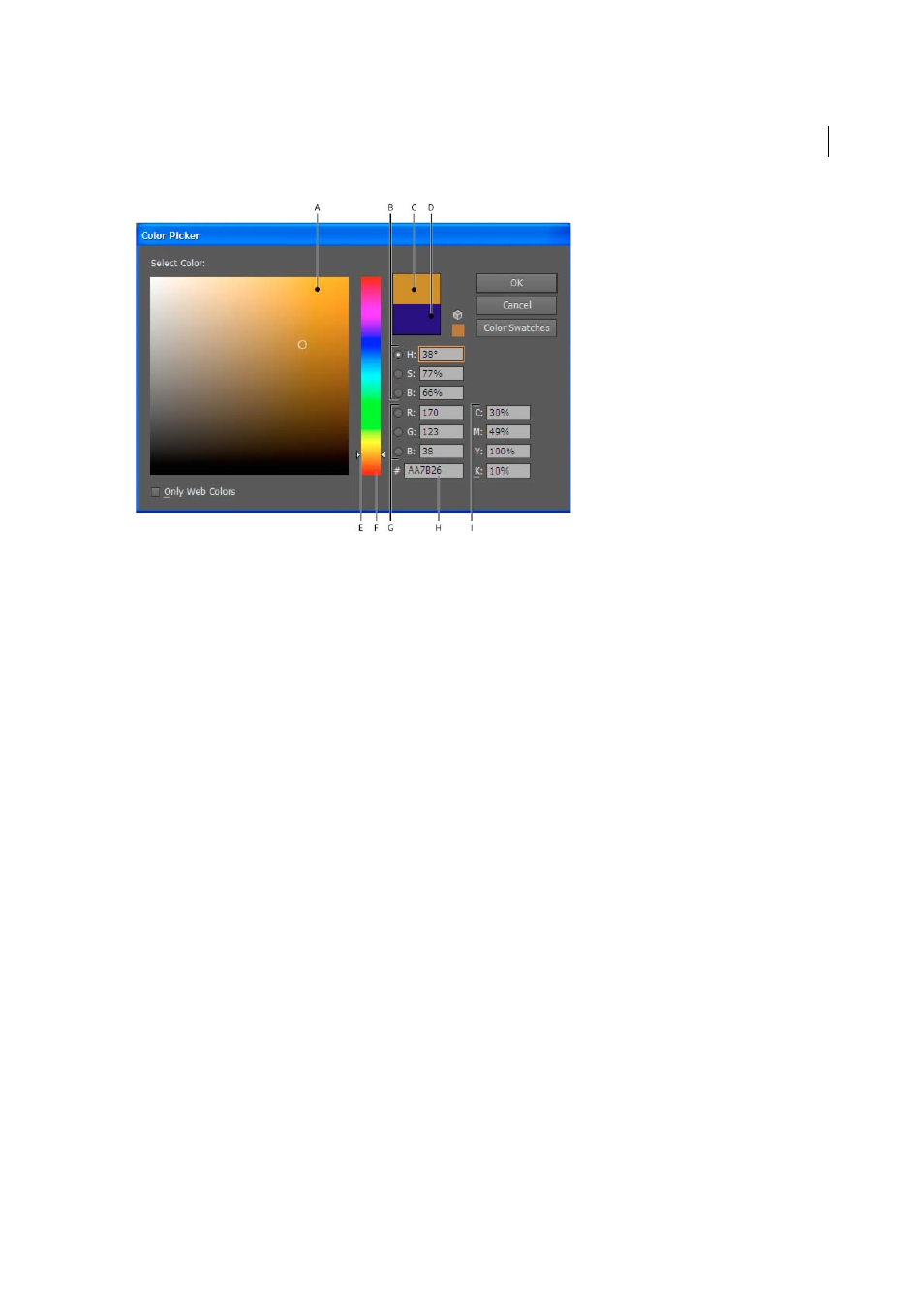
A Color field B HSB color values C New color rectangle D Original color rectangle E Color slider F Color spectrum G RGB color values
H Hexadecimal color value I CMYK color values
More Help topics
Display the Color Picker
❖
Double-click the fill or stroke color selection box in the Tools panel or Color panel.
Change the color spectrum displayed in the Color Picker
❖
Click a letter: H (Hue), S (Saturation), B (Brightness), R (Red), G (Green), or B (Blue).
Display only web-safe colors
Web-safe colors are those colors used by all web browsers, regardless of the platform.
❖
Select Only Web Colors.
View color swatches instead of the color spectrum
❖
Click Color Swatches. Click Color Models to return to view the color spectrum.
Select colors using the Color Picker
Do any of the following:
1
Click or drag inside the color spectrum. A circular marker indicates the color’s position in the spectrum.
2
Drag the triangles along the color slider or click inside the color slider.
3
Enter values in any of the text boxes.
4
Click Color Swatches, select a swatch, and click OK.