Panasonic Lumix GX8 User Manual
Page 118
3. Recording Modes
118
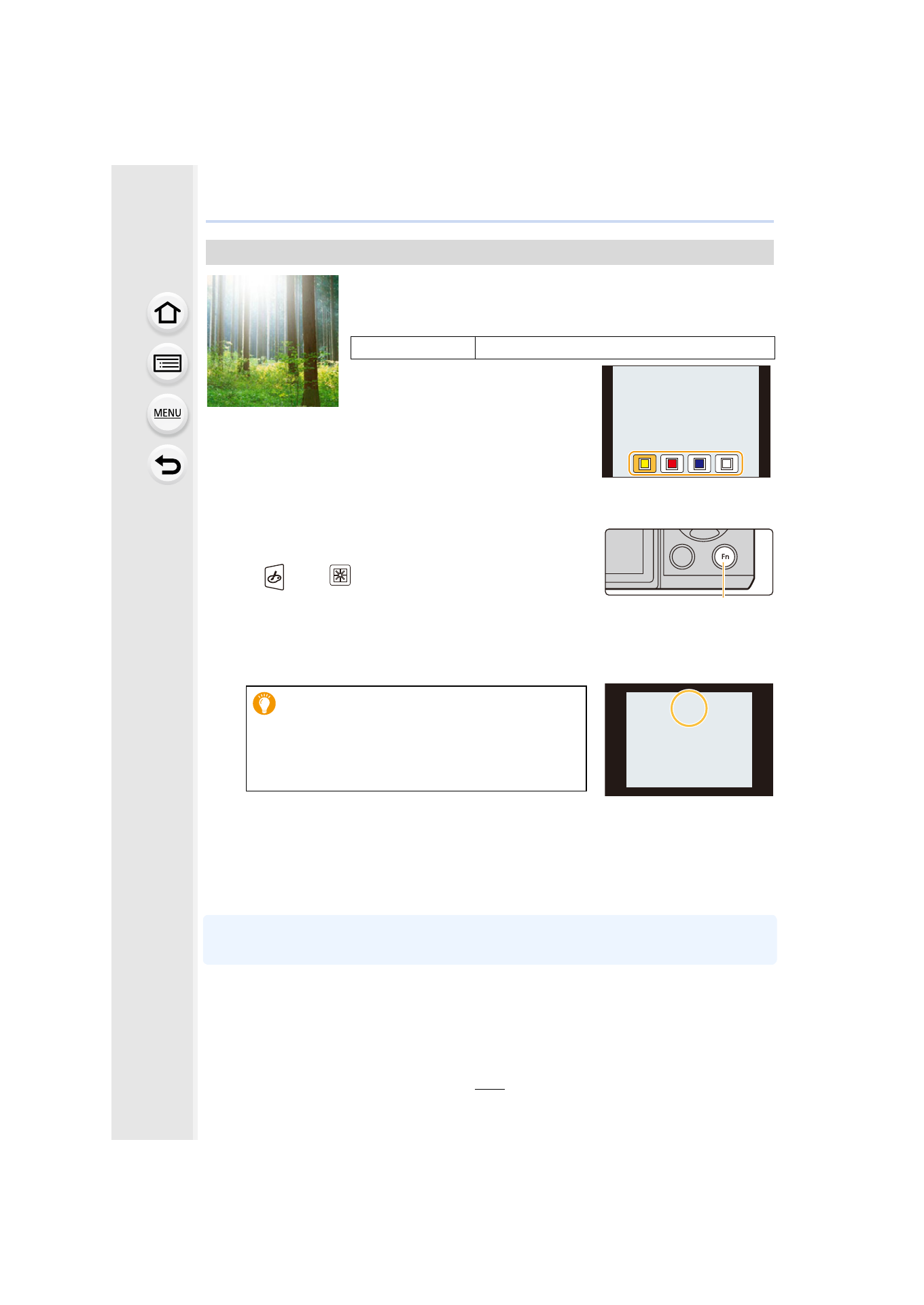
This effect adds a cast of light to the scene.
∫
Setting the light source
You can change the position and size of the light source.
1
Press [Fn4] to display the setting screen.
•
Setting screen can also be displayed by touching in order
of [
] then [
].
A Function button [Fn4]
2
Press 3/4/2/1 to move the center position of the
light source.
•
The position of the light source can also be moved by touching the screen.
•
The center of the light source can be moved to the edge of the screen.
3
Adjust the size of the light source by rotating the rear
dial.
•
The display can also be enlarged/reduced by pinching out/pinching in.
•
Pressing [DISP.] will return the light source setting back to the default setting.
4
Press [MENU/SET] to set.
•
Display of the recording screen will be delayed more than usual and the screen will look as if
frames are dropping.
[Sunshine]
Items that can be set
Color
Yellow tone/Red tone/Blue tone/White tone
•
Select the color tone by rotating the
rear dial, and then press [MENU/SET].
Point for when placing the center of the light
source
A more natural appearance can be created by
placing the center of the light source outside the
image.
A
- Lumix G85 Mirrorless Camera with 12-60mm Lens Lumix DMC-G85M Lumix DMC-G85 Lumix GH5 Lumix GX80 Lumix GX85 Mirrorless Camera with 12-32mm and 45-150mm Lenses Lumix G7 Mirrorless Camera with 14-42mm and 45-150mm Lenses (Black) Lumix G7 Mirrorless Camera with 14-42mm Lens Deluxe Kit (Silver) Lumix G7 Mirrorless Camera with 14-42mm Lens (Silver) Lumix DMC-G7 body