Panasonic Lumix GX8 User Manual
Page 131
131
4. Picture Quality and Color Tone Settings
∫
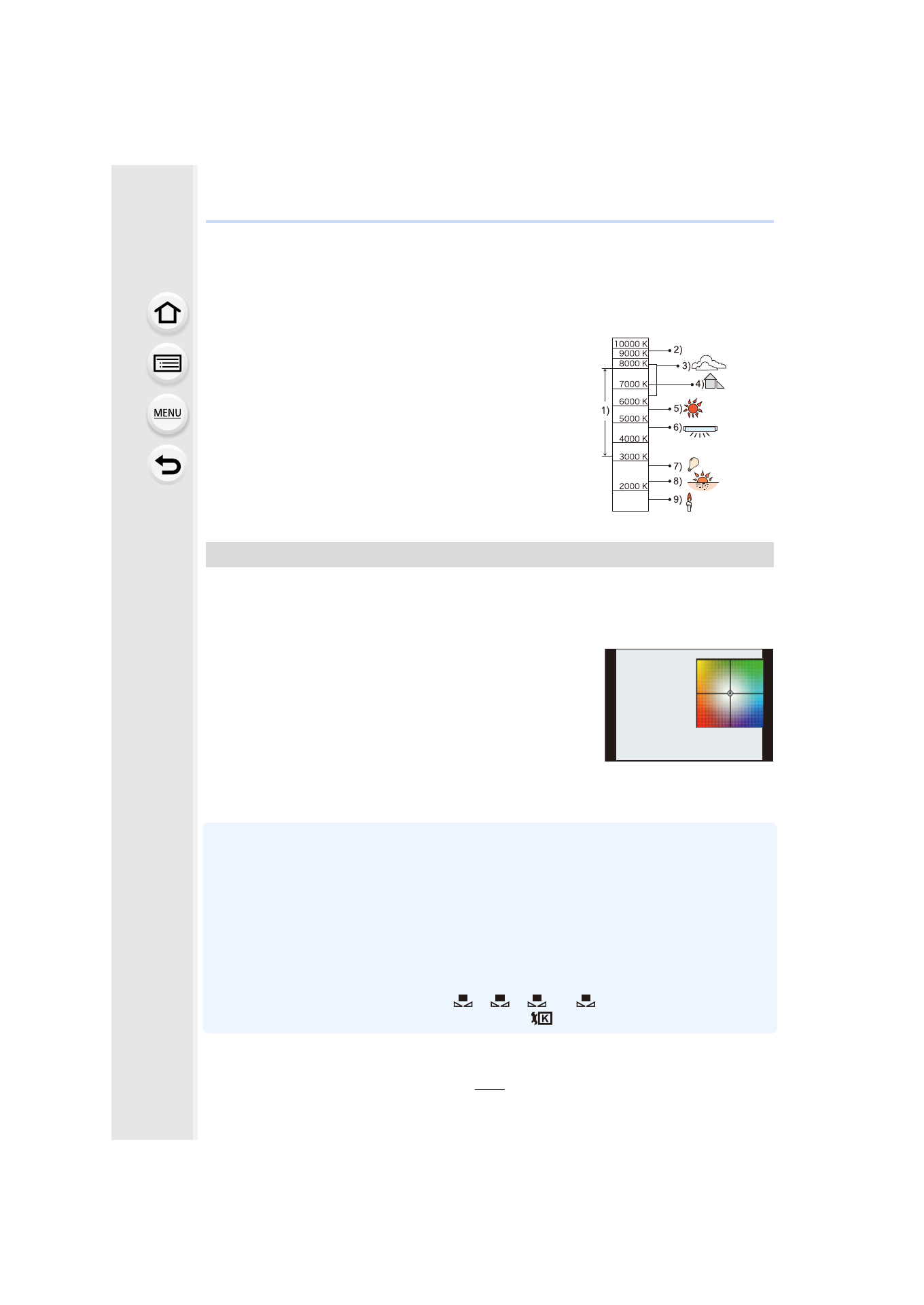
Auto White Balance
Depending on the conditions prevailing when pictures are taken, the pictures may take on
a reddish or bluish tinge. Furthermore, when a multiple number of light sources are being
used or there is nothing with a color close to white, Auto White Balance may not function
properly. In a case like this, set the White Balance to a mode other than [AWB].
1
Auto White Balance will work within this range.
2
Blue sky
3
Cloudy sky (Rain)
4
Shade
5
Sunlight
6
White fluorescent light
7
Incandescent light bulb
8
Sunrise and sunset
9
Candlelight
KlKelvin Color Temperature
You can finely adjust the White Balance when you cannot acquire the desired hue by
setting the White Balance.
1
Select the White Balance and then press 4.
2
Press 3/4/2/1 to fine-adjust the White Balance.
•
You can also make fine adjustments by touching the White
Balance graph.
•
Pressing [DISP.] resets the position back to the center.
3
Press [MENU/SET].
•
If you finely adjust the White Balance to [A] (amber), the White Balance icon on the screen will
change to orange.
If you finely adjust the White Balance to [B] (blue), the White Balance icon on the screen will
change to blue.
•
If you finely adjust the White Balance to [G] (green) or [M] (magenta), [_] (green) or [`]
(magenta) appears beside the White Balance icon on the screen.
•
The White Balance fine adjustment setting is reflected in the picture when using the flash.
•
The White Balance fine adjustment level returns to the standard setting (center point) in the
following cases.
–
When you reset the White Balance in [
], [
], [
] or [
]
–
When you reset the color temperature manually in [
]
Finely adjusting the White Balance
2 : A (AMBER: ORANGE)
1 : B (BLUE: BLUISH)
3 : G (GREEN: GREENISH)
4 : M (MAGENTA: REDDISH)
G
G
G
G
G
G
A
A
A
A
A
A
B
B
B
B
B
B
B
M
M
M
M
M
M
1
2
3
4
- Lumix G85 Mirrorless Camera with 12-60mm Lens Lumix DMC-G85M Lumix DMC-G85 Lumix GH5 Lumix GX80 Lumix GX85 Mirrorless Camera with 12-32mm and 45-150mm Lenses Lumix G7 Mirrorless Camera with 14-42mm and 45-150mm Lenses (Black) Lumix G7 Mirrorless Camera with 14-42mm Lens Deluxe Kit (Silver) Lumix G7 Mirrorless Camera with 14-42mm Lens (Silver) Lumix DMC-G7 body