Selecting pictures from 4k burst file and saving, P185 – Panasonic Lumix GX8 User Manual
Page 185
185
6. Shutter and Drive Settings
•
The picture will be saved in JPEG format.
•
The picture will be saved with recording information (Exif information), including its shutter
speed, aperture and ISO sensitivity information.
1
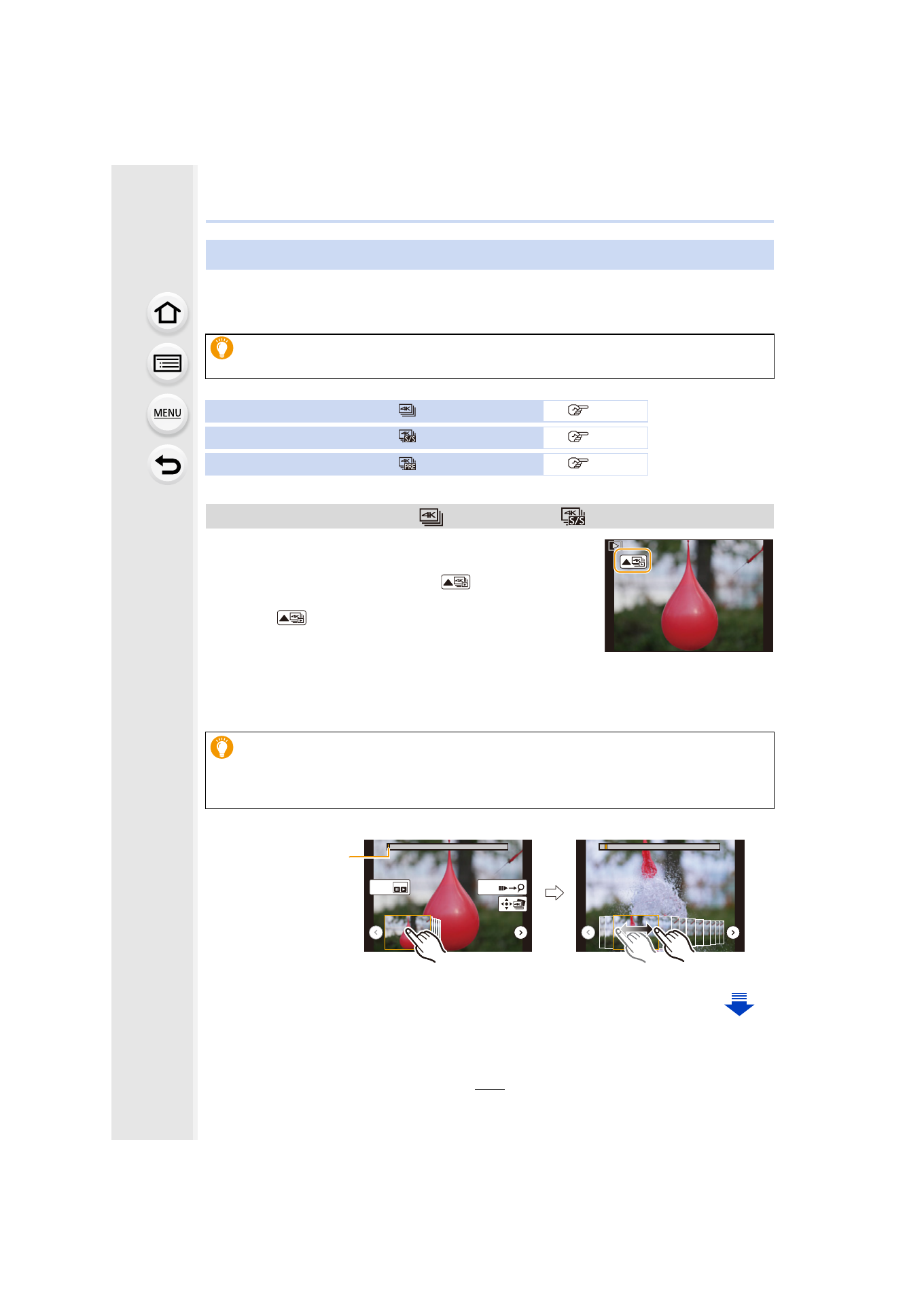
Select a 4K burst file on the playback screen, and
press 3.
•
4K burst files are displayed with [
].
•
You can also perform the same operation by touching the
icon [
].
•
The slide view screen for selecting pictures will be
displayed. It takes a few seconds until the screen is
displayed.
2
Touch and drag the frames to select the frame you want to save as a picture.
•
You can also perform the same operation by pressing 2/1.
<Slide view screen>
Selecting pictures from 4K burst file and saving
Setting [Playback Mode] in the [Playback] menu to [4K PHOTO] enables you to play
back only 4K burst files and pictures created from them.
4K burst files recorded with [
] ([4K Burst])
4K burst files recorded with [
] ([4K Burst(S/S)])
4K burst files recorded with [
] ([4K Pre-Burst])
4K burst files recorded with [
] ([4K Burst]) or [
] ([4K Burst(S/S)])
When you select pictures from any 4K burst file with long burst time, we
recommend that you make a rough selection of scenes using the 4K burst playback
screen, and then select the desired frame which you want to save as a picture by
using the slide view screen.
Fn1
Fn2
Position of the
displayed frame
- Lumix G85 Mirrorless Camera with 12-60mm Lens Lumix DMC-G85M Lumix DMC-G85 Lumix GH5 Lumix GX80 Lumix GX85 Mirrorless Camera with 12-32mm and 45-150mm Lenses Lumix G7 Mirrorless Camera with 14-42mm and 45-150mm Lenses (Black) Lumix G7 Mirrorless Camera with 14-42mm Lens Deluxe Kit (Silver) Lumix G7 Mirrorless Camera with 14-42mm Lens (Silver) Lumix DMC-G7 body