Saving patterns, Exporting patterns – D16 Group Drumazon 2 Drum Machine 909 Emulation Plug-In User Manual
Page 44
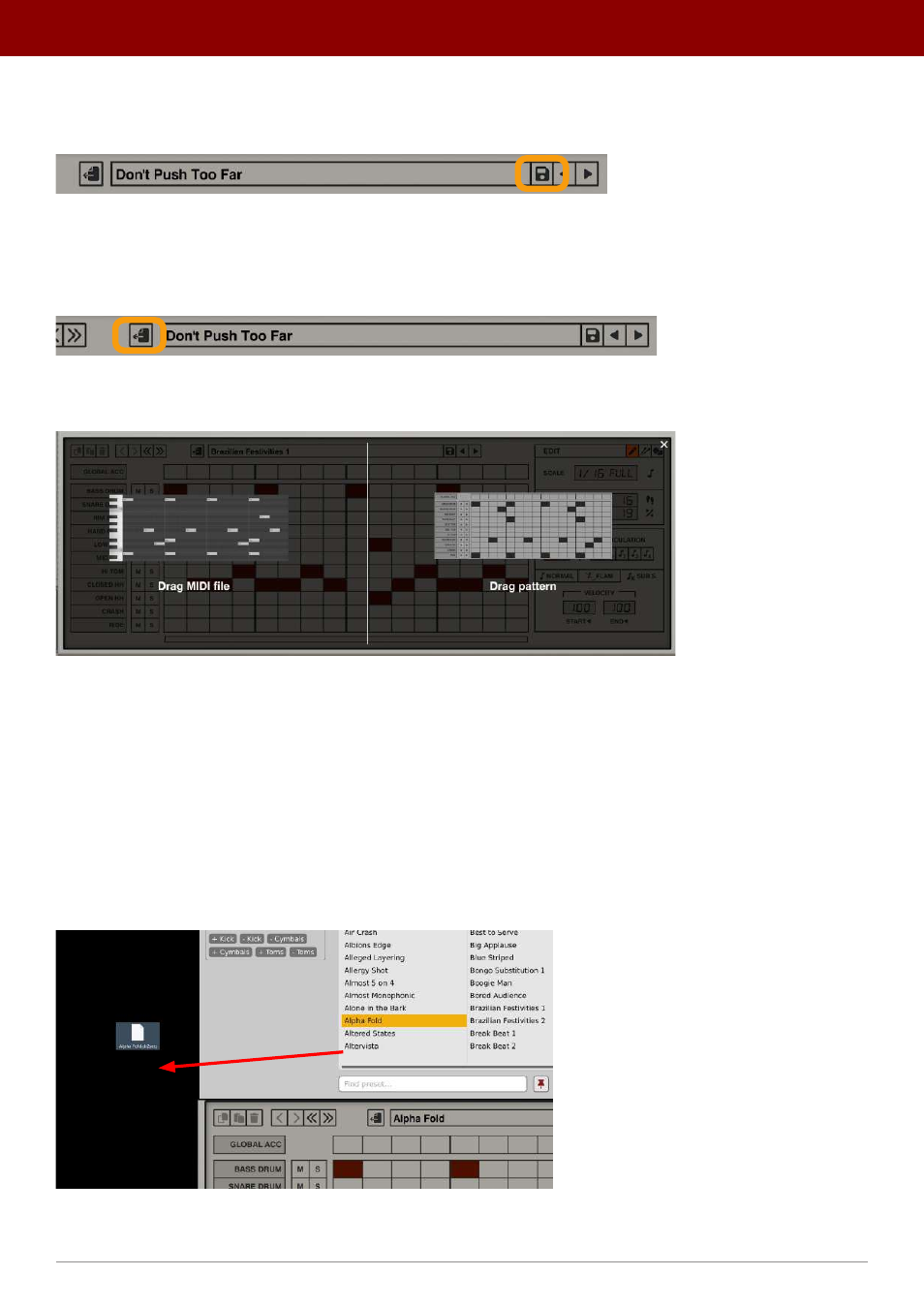
Saving patterns
Using the
Save
button will save your pattern.
Saving a pattern
Exporting patterns
Using the
Export
button allows you to export your pattern outside
Drumazon
:
Exporting a pattern
When you click the button, the
Pattern Editor
area will be darkened by an overlay panel:
Dargging a pattern onto a track as MIDI clip, or onto the hard drive in Drumazon’s own format
From this panel, you will be able to drag-and-drop the pattern wherever you like - either into your project or to a
location on your hard drive. Using the left-side option (
Drag MIDI file
), you can drag the pattern as a MIDI Clip, while
using the right-side option (
Drag pattern
), you can drag the pattern in
Drumazon’s
native file format. Using
Drag pattern
also works between instances of
Drumazon
.
Velocity values for the exported MIDI Clip will be derived from
Pattern Properties
(the values for
Accented
and
Non-ac-
cented
steps, and for
Global boost
).
Alternatively, you can export patterns directly from the
Pattern Browser
by dragging a pattern from there onto the hard
drive or into a project in your DAW:
Dragging a file directly from the Pattern Browser
However, this will export patterns only in
Drumazon’s
native file format. You cannot export patterns as MIDI Clips this way.
44
inteRface oveRview •
Play modes