Setting presets as favorites, Pinning presets – D16 Group Drumazon 2 Drum Machine 909 Emulation Plug-In User Manual
Page 67
Setting presets as Favorites
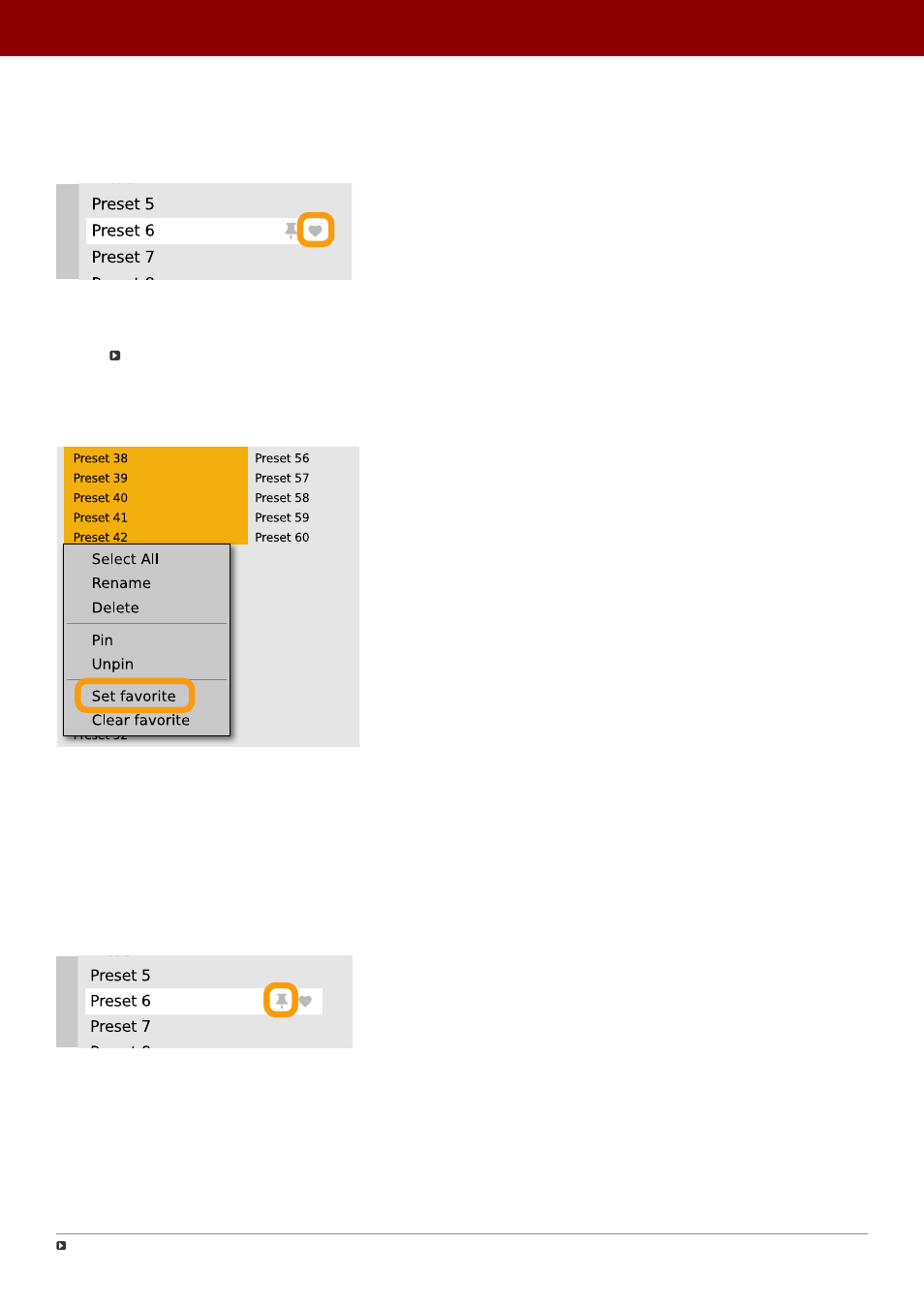
As described in the chapters above, you can mark a preset as a
Favorite
by clicking the
Heart
icon while hovering over
the preset name:
Setting a preset as a Favorite
The flag is stored globally, meaning that a
Favorite
preset will be accessible as such from every other instance of the
plug-in
.
It’s also possible to perform the operation for a selection of presets. After you select the desired presets in the
Results
window, right-click on the presets to open a context menu:
Setting Favorite presets from the context menu
And select the
Set favorite
option.
To clear
Favorite
flags for the selection of presets, use the
Clear favorite
option instead.
Pinning presets
You can
Pin
one or more presets using the
Pin
icon while hovering over the preset name:
Pinning a preset
Unlike
Favorites
, this flag works locally and it’s stored with the project file (not globally). This means the
Pins
are stored
individually for every instance (with total recall, so a plug-in state is recalled if saved in the context of a project).
Sometimes a project or plug-in reload may be required
67
PReset management •
ediTinG PreseTs