Unlinking a parameter from midi cc, Loading / saving a midi cc map, Parameter automation – D16 Group Drumazon 2 Drum Machine 909 Emulation Plug-In User Manual
Page 50
Unlinking a parameter from MIDI CC
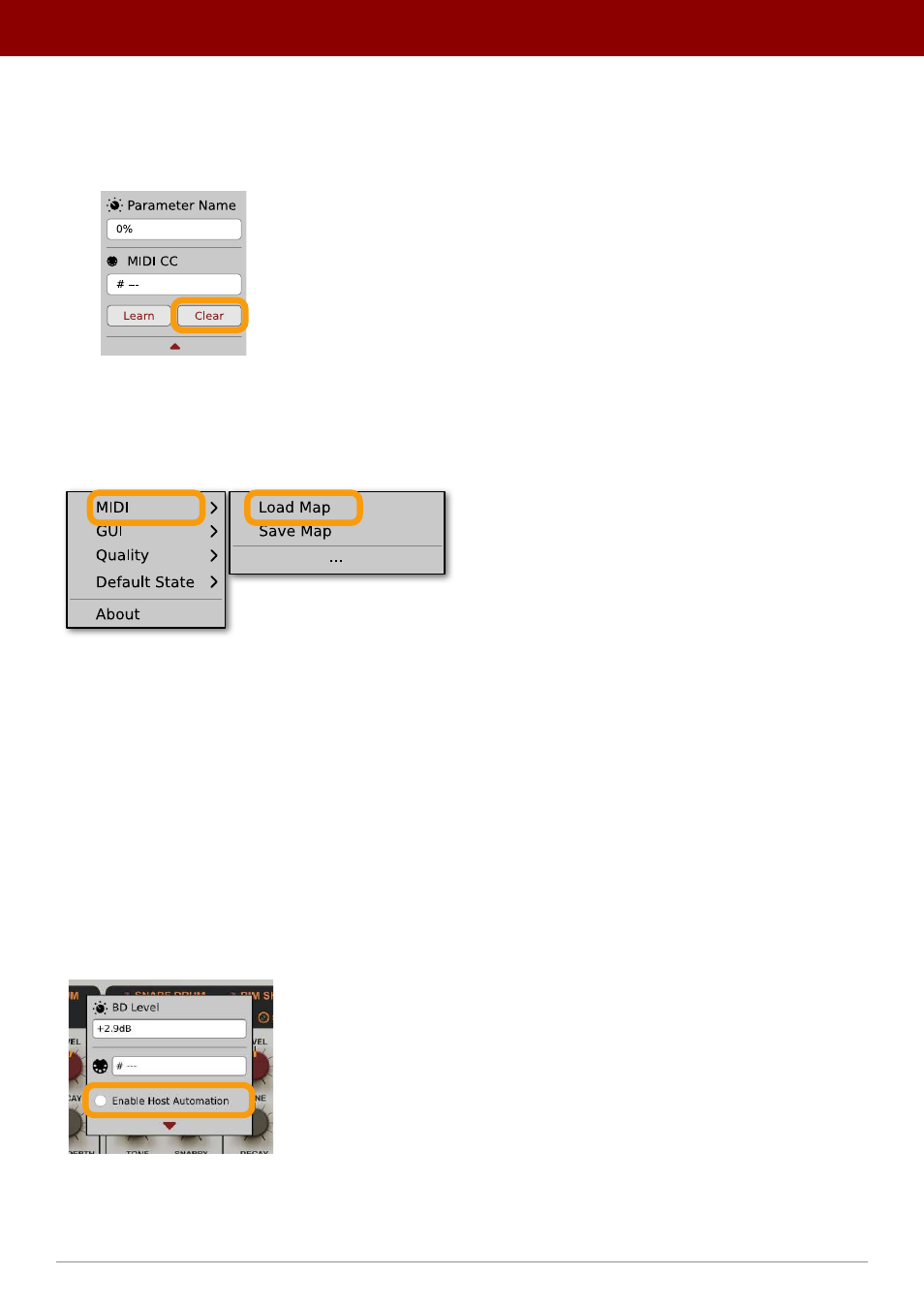
You can also delete a MIDI CC code attributed to a parameter from the context menu:
1.
From the context menu, click the
Clear
button:
The Clear MIDI CC button
2.
Then confirm using the
OK
button.
Loading / Saving a MIDI CC Map
These options are available in the
MIDI
submenu, accessible under
Cog
icon in the left-upper corner:
The Load Map and Save Map options
•
Save Map
- Saves the current MIDI CC map to a file.
•
Load Map
- Loads a MIDI CC map from a stored file.
Parameter automation
By default, all internal
Drumazon 2
parameters are disabled for external automation; this is because
Drumazon 2
has
thousands
of
sound parameters and
VST/AU/AAX
technologies don’t allow so many automatable parameters.
If you right click on a parameter in the
Drumazon 2
UI, you will see a context menu that allows you to enable automa-
tion for a given parameter and control it externally:
Enabling a parameter for automation
Note that not all parameters can be externally automated. Only parameters directly involved in sound generation have
this option present.
50
oPtions •
midi and ParameTer auTomaTion