Clip management, Selecting clips, Copying clips – Grass Valley EDIUS Neo 3 User Manual
Page 263: Cutting clips
EDIUS NEO — User Reference Guide
261
Clip Management
Clip Management
Clip management operations deal with the organization, categorization,
sorting and management of clips in the Asset Bin and Timeline.
Selecting Clips
•
To select a single clip, click on it in the Asset Bin or the Timeline.
•
To select multiple clips, do one of the following:
•
Frame (draw a box around) the clips you wish to select with the
mouse cursor.
•
While holding down the [
CTRL
] key, click on the clips you wish to
select.
•
While holding down the [
SHIFT
] key, select the first clip in a range
and the last clip in a range. All clips from the first to the last will be
selected.
Copying Clips
To copy a clip, do any of the following:
•
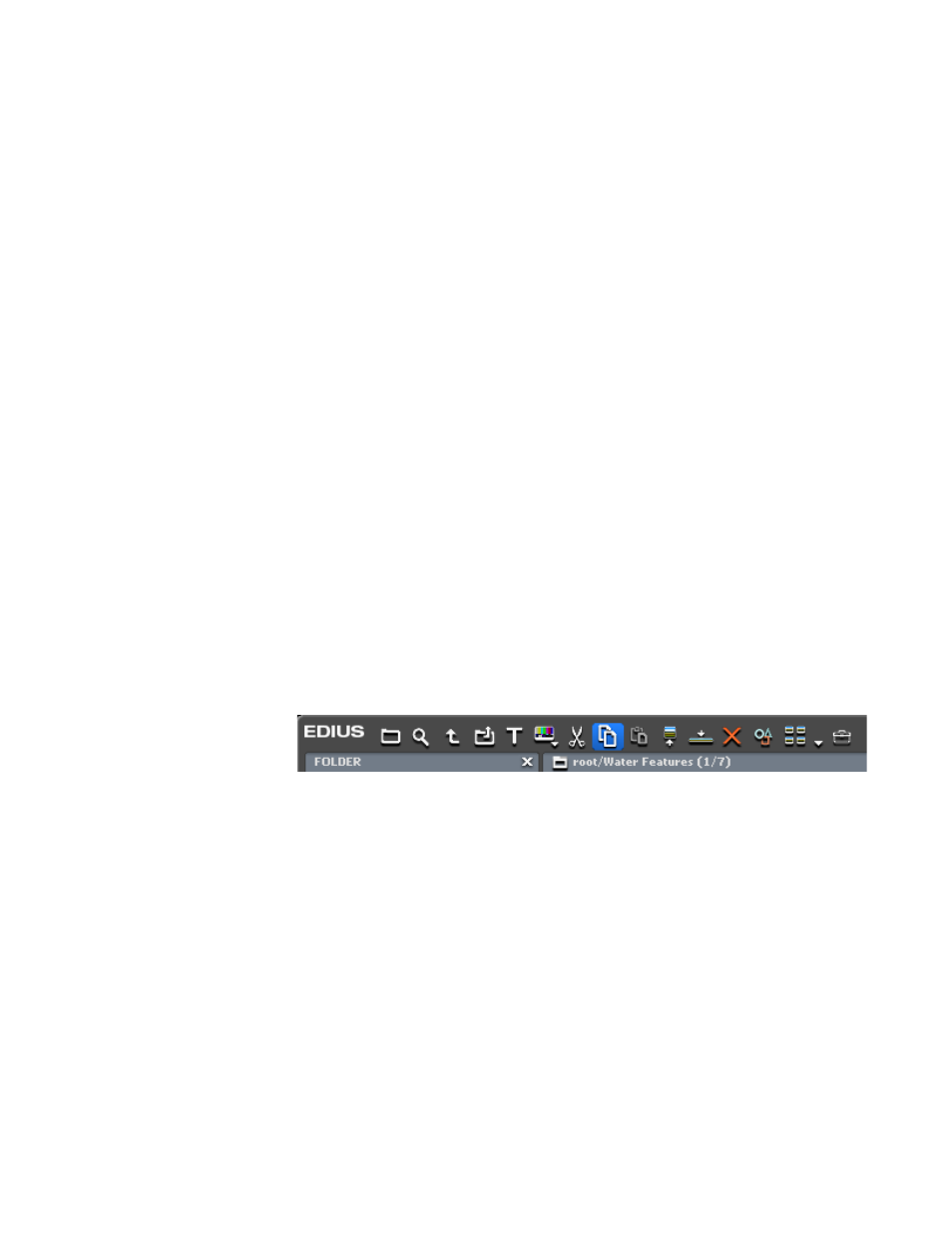
Select a clip in the Asset Bin and click on the
Copy
button (highlighted in
).
Figure 262. Asset Bin Copy Button
•
Right-click a clip in either the Asset Bin or Timeline and select Copy
from the menu.
•
Select a clip and press [
CTRL
]+[
C
] on the keyboard.
Cutting Clips
To cut a clip from the current location, do any of the following:
•
Select a clip in the Asset Bin and click on the
Cut
button (highlighted in
).