3 format and partition raid volumes, Installation – Areca ARC-8050T3U 6-Bay Thunder3 Desktop RAID Storage Array User Manual
Page 40
INSTALLATION
40
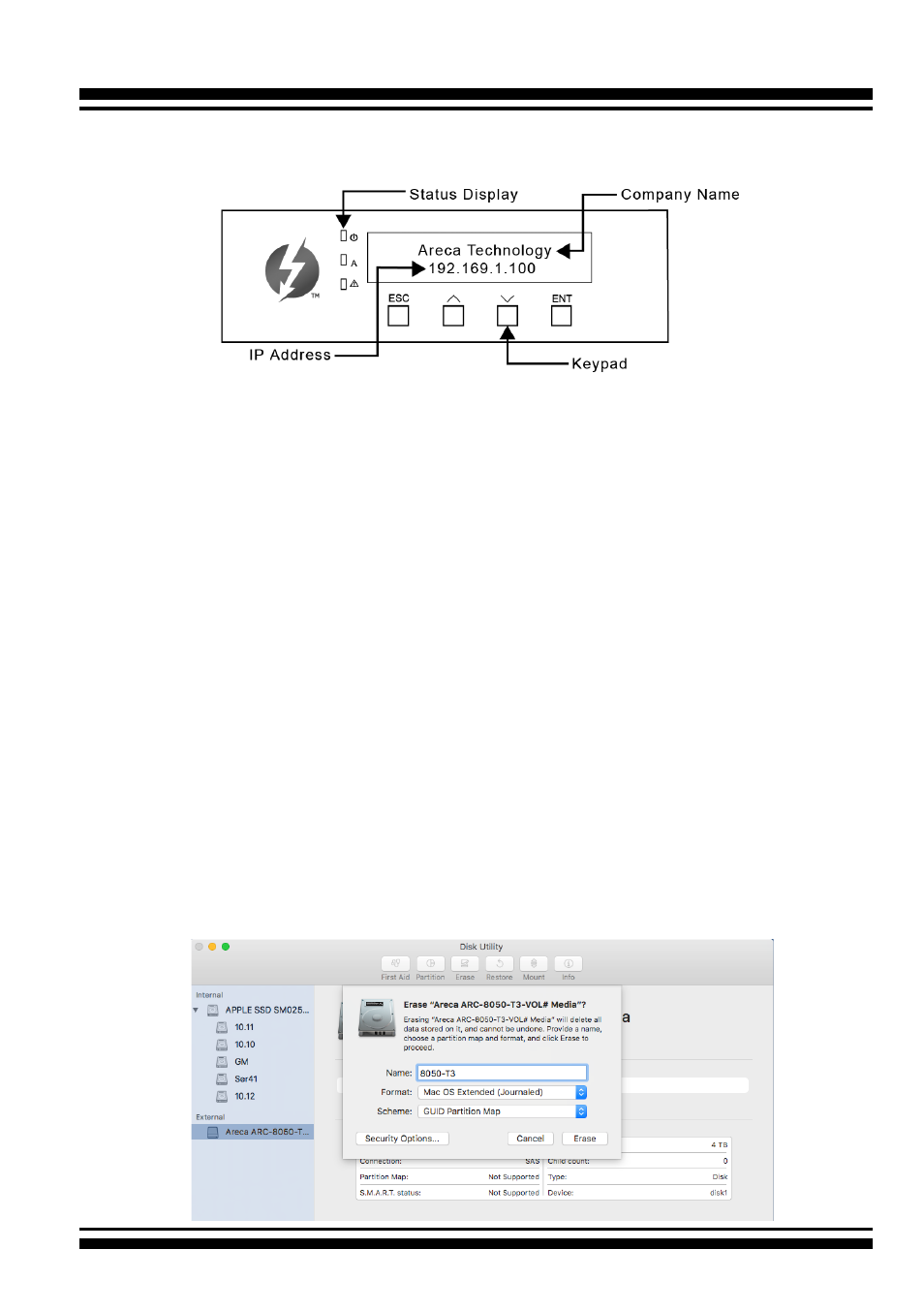
The LCD initial screen is shown below:
2.4.2.3 Format and Partition RAID Volumes
After the volume set is ready for system accesses, it needs to be
partitioned, formatted, and mounted by the operating system.
When you create a volume through McRAID storage manager,
the macOS recognizes that a new disk is avail, and displays a
message asking what you next want to do. If the message does
not show up, start the “Disk Utility” manually from the “Finder”,
use the “Go” menu and open the “Utilities” folder. Double-click
on the “Disk Utility” program.
To format and partition your unit
1. Formatting a drive in Disk Utility is easy, though Disk Utility
uses a different term: Erase. When the Disk Utility window
opens, find and select the desired drive in the sidebar that
represents your RAID storage. This is how you prepare to
erase and format the RAID storage.