3 main menu, 4 quick function, Web browser-based configuration – Areca ARC-8050T3U 6-Bay Thunder3 Desktop RAID Storage Array User Manual
Page 61
61
WEB BROWSER-BASED CONFIGURATION
• To display RAID set information, move the mouse cursor to the
desired RAID set number, then click on it. The RAID set infor-
mation will be displayed.
• To display volume set information, move the mouse cursor to
the desired volume set number, then click it. The volume set
information will be displayed.
• To display drive information, move the mouse cursor to the
desired physical drive number, then click it. The drive informa-
tion will be displayed.
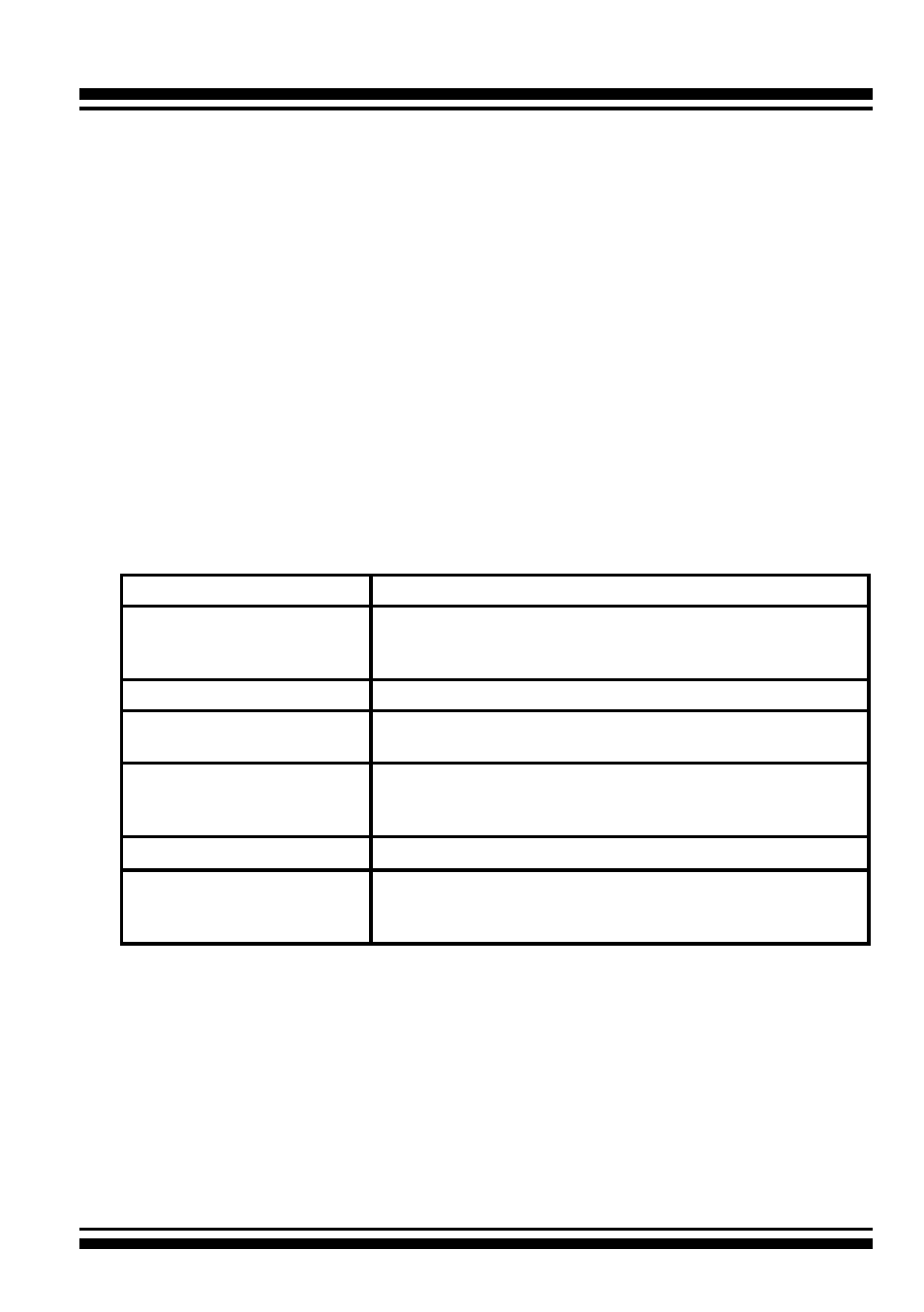
4.3 Main Menu
The main menu shows all available functions, accessible by clicking
on the appropriate link.
Individual Category
Description
Quick Function
Create a default configuration, which is based on the
number of physical disks installed; it can modify the
volume set Capacity, Raid Level, and Stripe Size.
Raid Set Functions
Create a customized RAID set.
Volume Set Functions
Create customized volume sets and modify the ex
-
isted volume sets parameter.
Physical Drives
Create pass through disks and modify the existing
pass through drives parameters. Also provides the
function to identify disk drives (blinking fault LED).
System Controls
Setting the RAID system configuration.
Information
Viewing the controller information. The Raid Set Hier-
archy can be viewed through the “Raid Set Hierarchy”
item.
4.4 Quick Function
The Quick Create option configures the arrays with just a few
steps. Although srives of different sizes may be used in the array,
Quick Create will only operate upon drives of the same physical
size.
The number of physical drives in the RAID storage determines the
Raid Levels that can be implemented with the RAID set. You can