Verify the configuration – H3C Technologies H3C SecPath F1000-E User Manual
Page 340
14
Step3
Configure eBGP connection.
# Configure Device A.
•
Select Network > Routing Management > BGP from the navigation tree of Device A.
•
Select the Enable BGP check box.
•
Type 65008 for AS.
•
Click Apply.
•
Click Add in the Peer Configuration field.
•
Type 200.1.1.1 for Peer IP Address.
•
Type 65009 for Peer AS.
•
Click Apply.
# Configure Device B.
•
Select Network > Routing Management > BGP from the navigation tree of Device B. Click
Add in the Peer Configuration field.
•
Type 200.1.1.2 for Peer IP Address.
•
Type 65008 for Peer AS.
•
Click Apply.
Verify the configuration
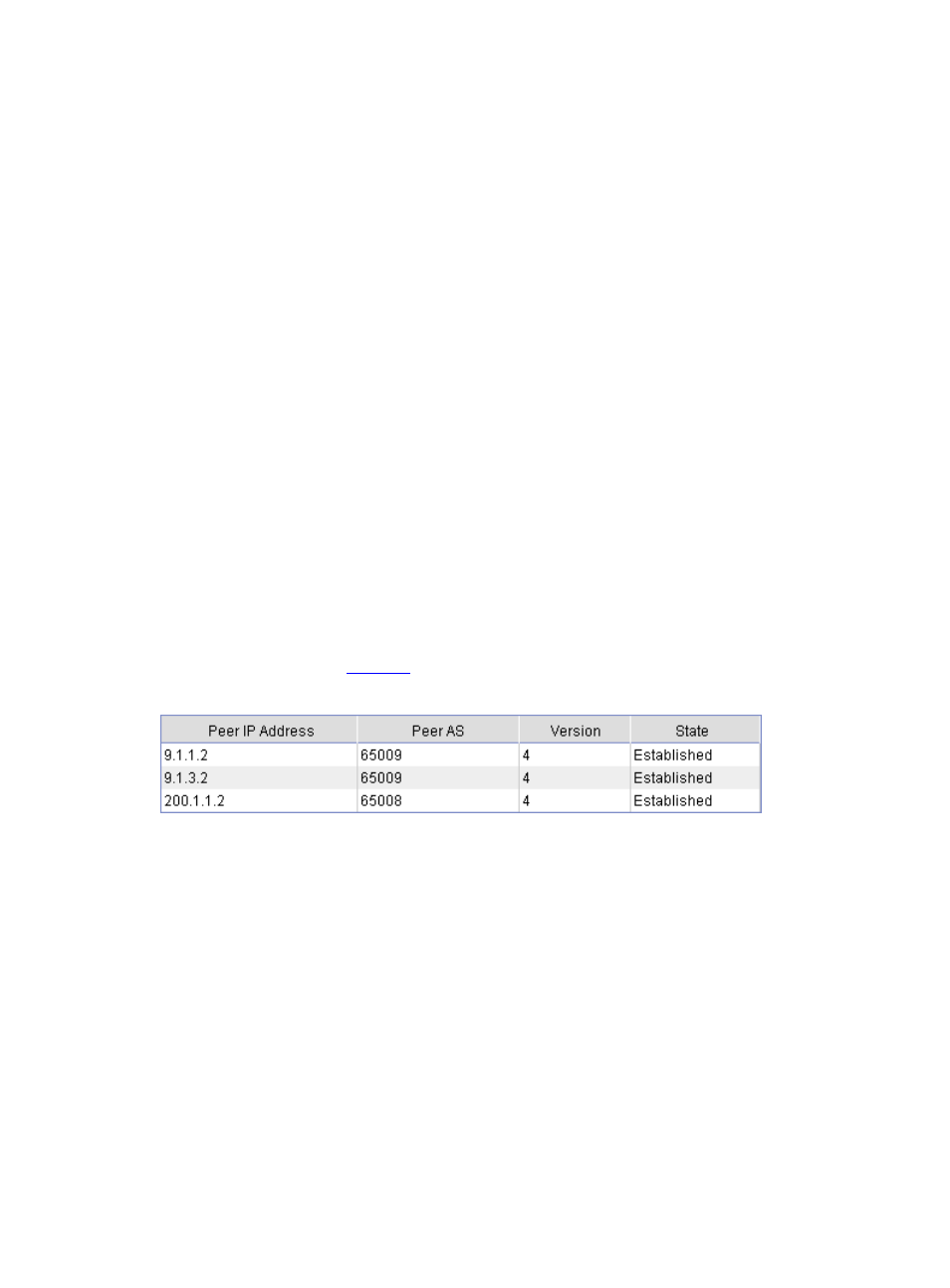
# Display the BGP peer connection state of Device B.
Select Network > Routing Management > BGP from the navigation tree of Device B, and then
click Show Peer in the Show Information field. BGP connections are established from Device B to
other devices, as shown in
.
Figure 18 BGP configuration result